
Account Settings
Manage your Valley account configuration, profile, and preferences.
Profile Settings
Update Your Profile
Click your user icon in the top right corner
Select your profile or settings option
Edit your name or profile picture as needed
Click Save
Update Your Email Address
Updating your email requires a two-step verification process to ensure account security.
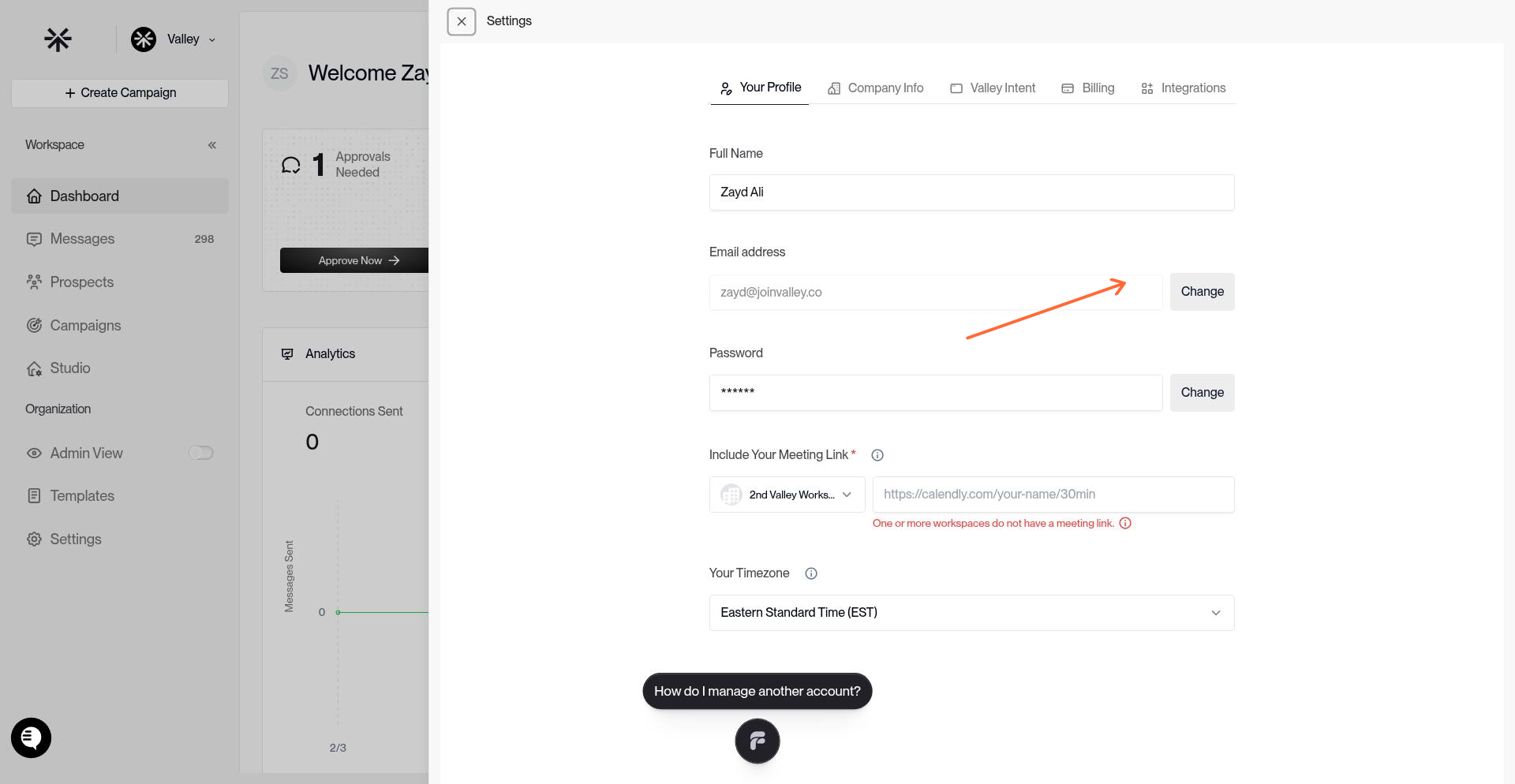
Click your user icon in the top right corner
In the settings modal, find your current email address and click Change
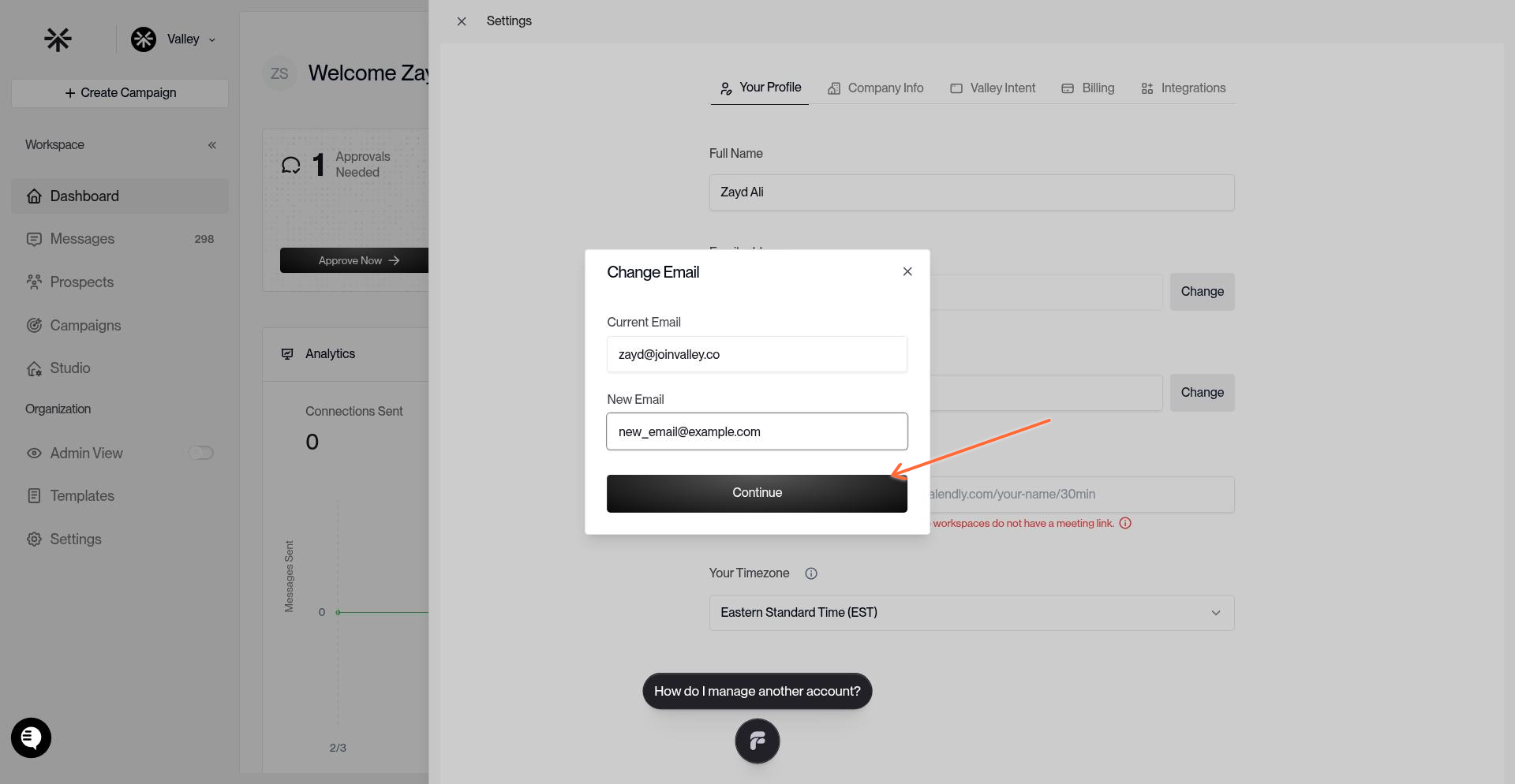
Enter your new email address
Click Continue to request a verification code
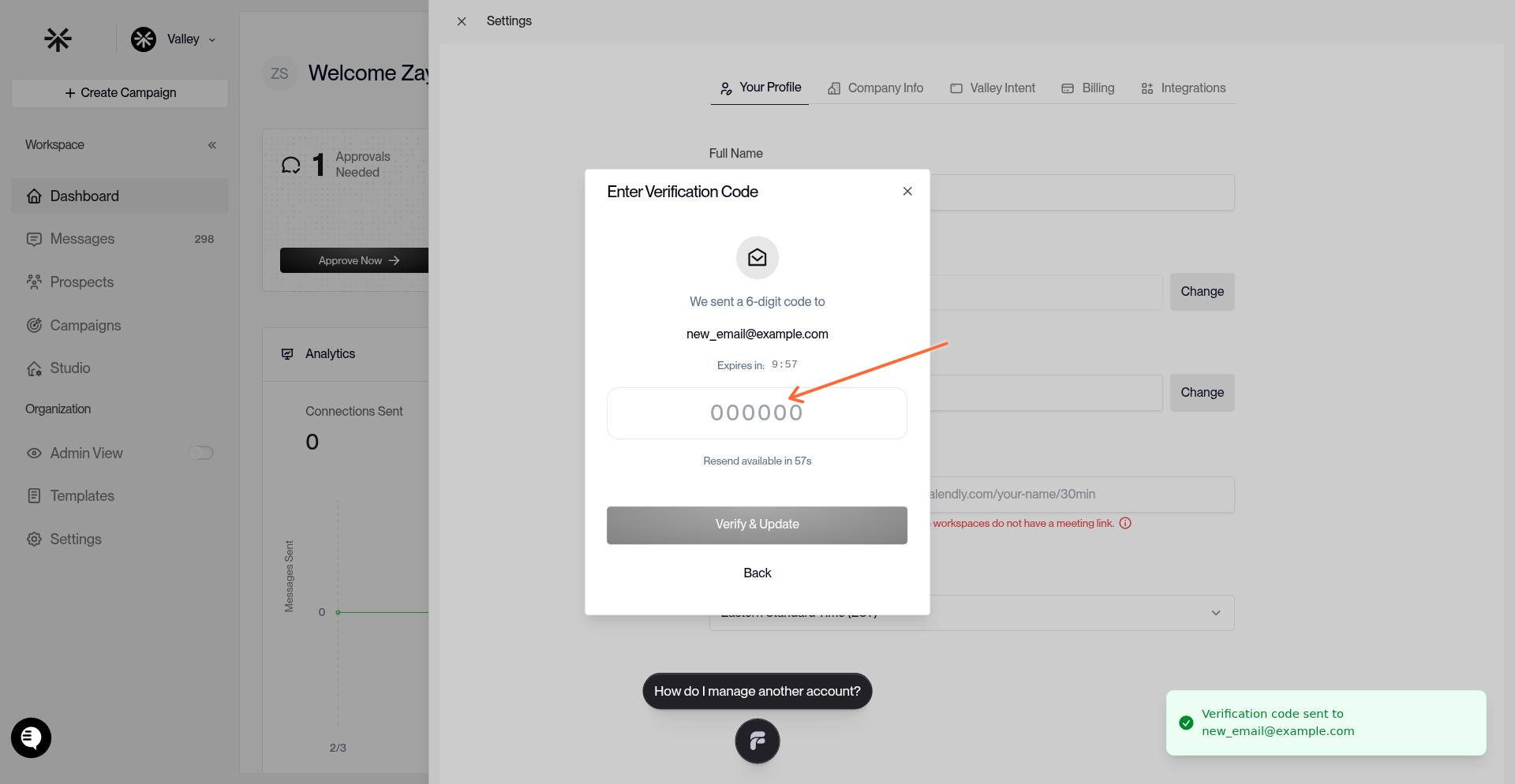
Check your new email inbox for the 6-digit verification code
Enter the code in the verification field
Click Verify & Update
The verification code expires after 10 minutes. If you don't receive the code, check your spam folder or request a new one.
Timezone
Set your timezone in your profile section. Your timezone controls when Valley sends messages - Autopilot respects your timezone for all message scheduling, sending during business hours.
Always set your timezone accurately. If you have team members in other regions, each person should set their own timezone individually in their profile.
Booking Link
Add your scheduling URL (Calendly, Cal.com, etc.) in your profile settings. This is your default booking link.
You also need to add your booking link to each Product you create in Studio. The Product-level link is what Valley uses when generating messages with scheduling CTAs.
Both need to be set - profile-level and product-level. If your workspace shares Products, duplicate the shared Product, add your own booking link, and rename it "PRODUCT NAME - (Your Name)."
Password & Login
Valley uses email-based login. To change your password:
Go to Settings > Security
Click "Change Password"
Enter current and new password
Click Update
Notification Preferences
Webhooks
Valley uses webhooks for real-time notifications. Set up webhooks to push events (like interested replies) to Slack, your CRM, or other tools.
Go to Settings > Integrations > Webhooks
Create a webhook with your target URL
Select which events trigger the webhook
Save
This is how teams build Slack notifications, custom CRM alerts, and workflow automations. See the Integrations guide for detailed setup.
Valley doesn't have native email notifications or a native Slack integration. Webhooks are the way to get real-time alerts outside of the Valley inbox.
Manage Seats
Add and manage team members from Settings > Manage Seats. See the Adding Seats guide for full details.
Two roles available:
Admin - Full access including team management, billing, and Admin View
Member - Campaign creation and inbox management for their own account
Billing
Access billing, invoices, and plan management from Settings > Billing. See the Billing guide for pricing details and upgrade instructions.