
View Scheduled Dates for Approved Messages
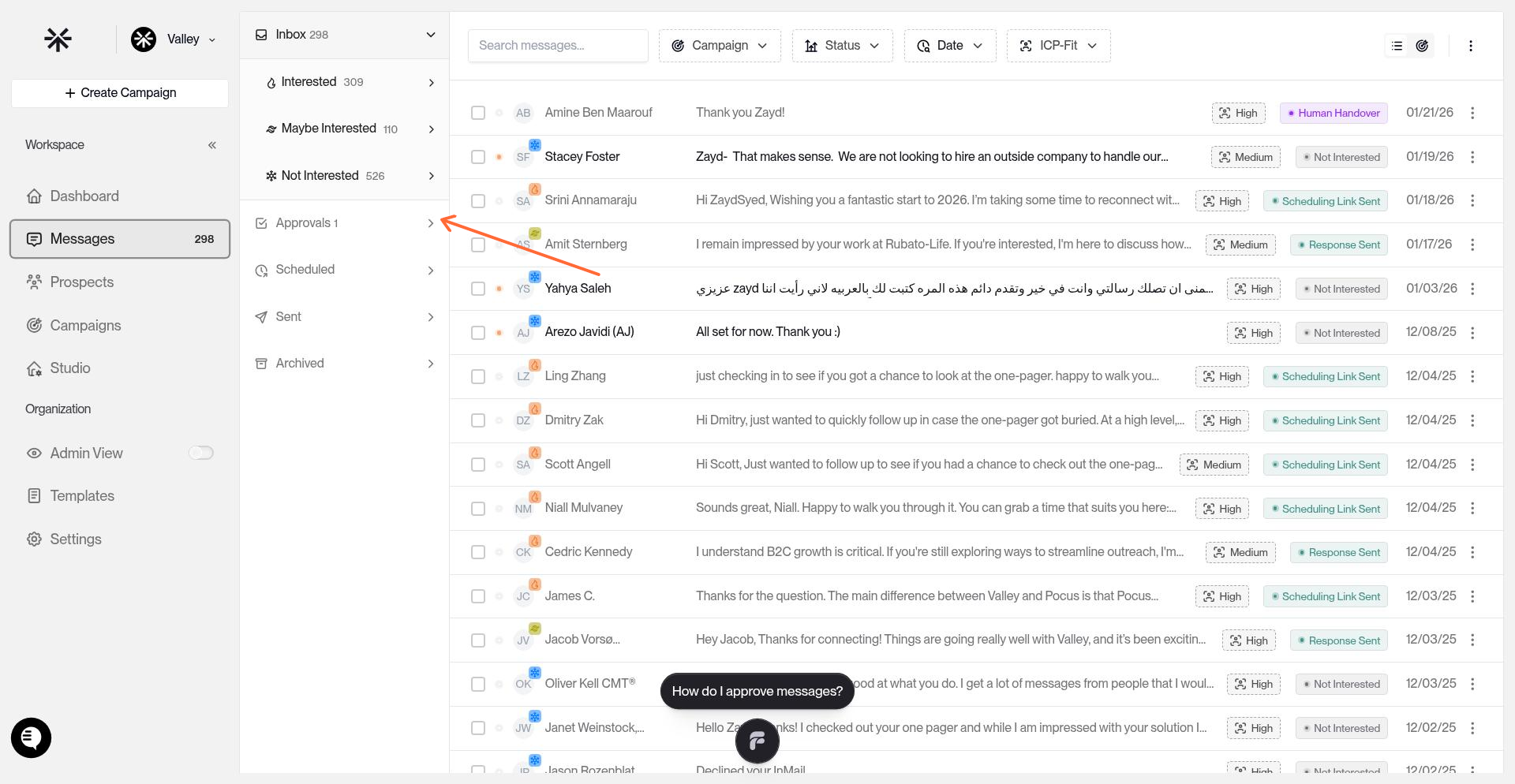
Track when messages were approved and when they're scheduled to send from the Approvals and Scheduled sections in your left sidebar.
Messages move from Approvals to Scheduled once approved. The Scheduled section shows your outreach queue with send times.
Understanding the Date Fields
Approved At shows when a message was approved (either manually or by Autopilot). Find this in the Approvals section, displayed as "Approved [time] ago" on each message card.
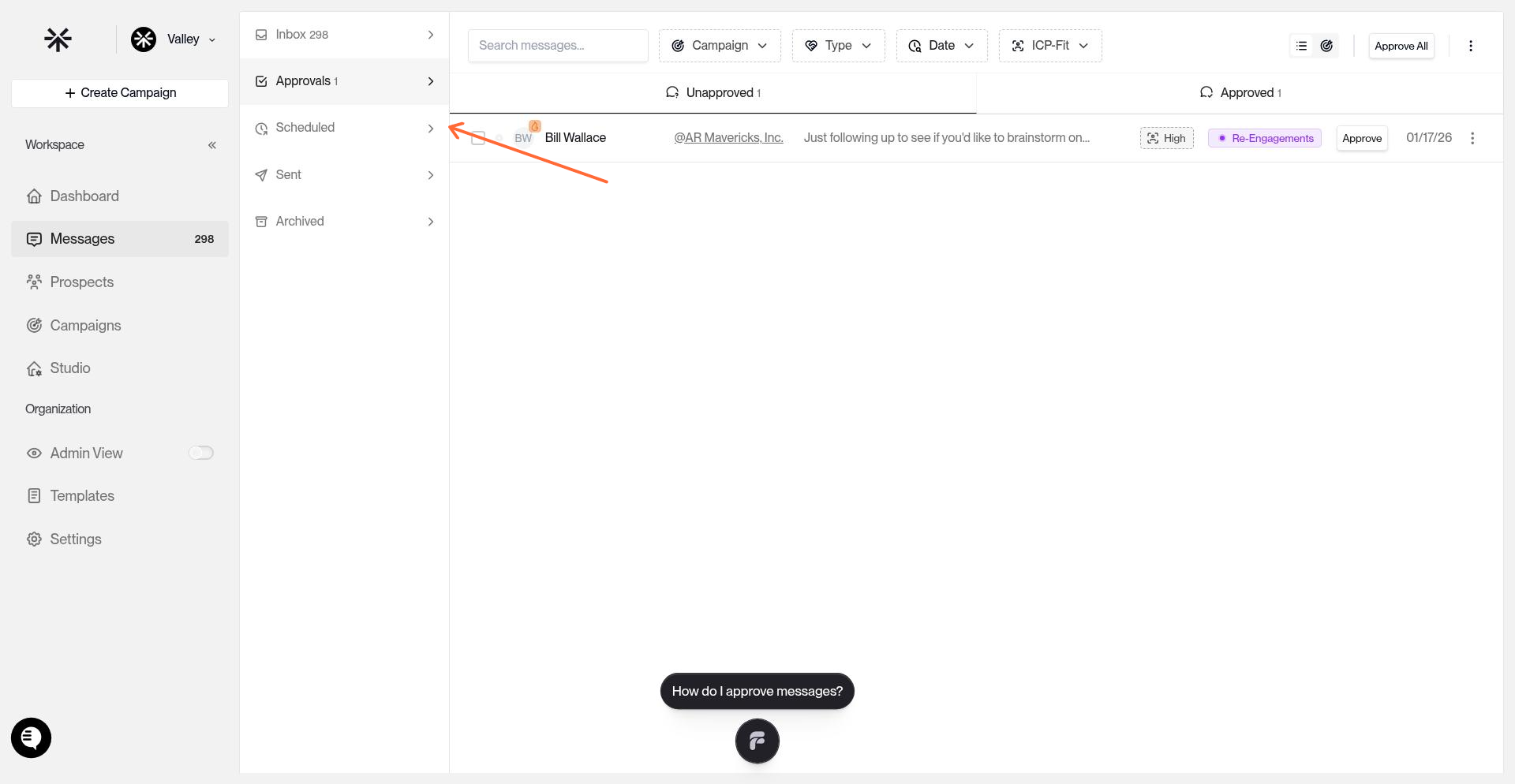
Scheduled At shows when a message will be sent. Find this in the Scheduled section, displayed as "Scheduled for [date and time]" on each message card.
Navigate to Your Message Queues
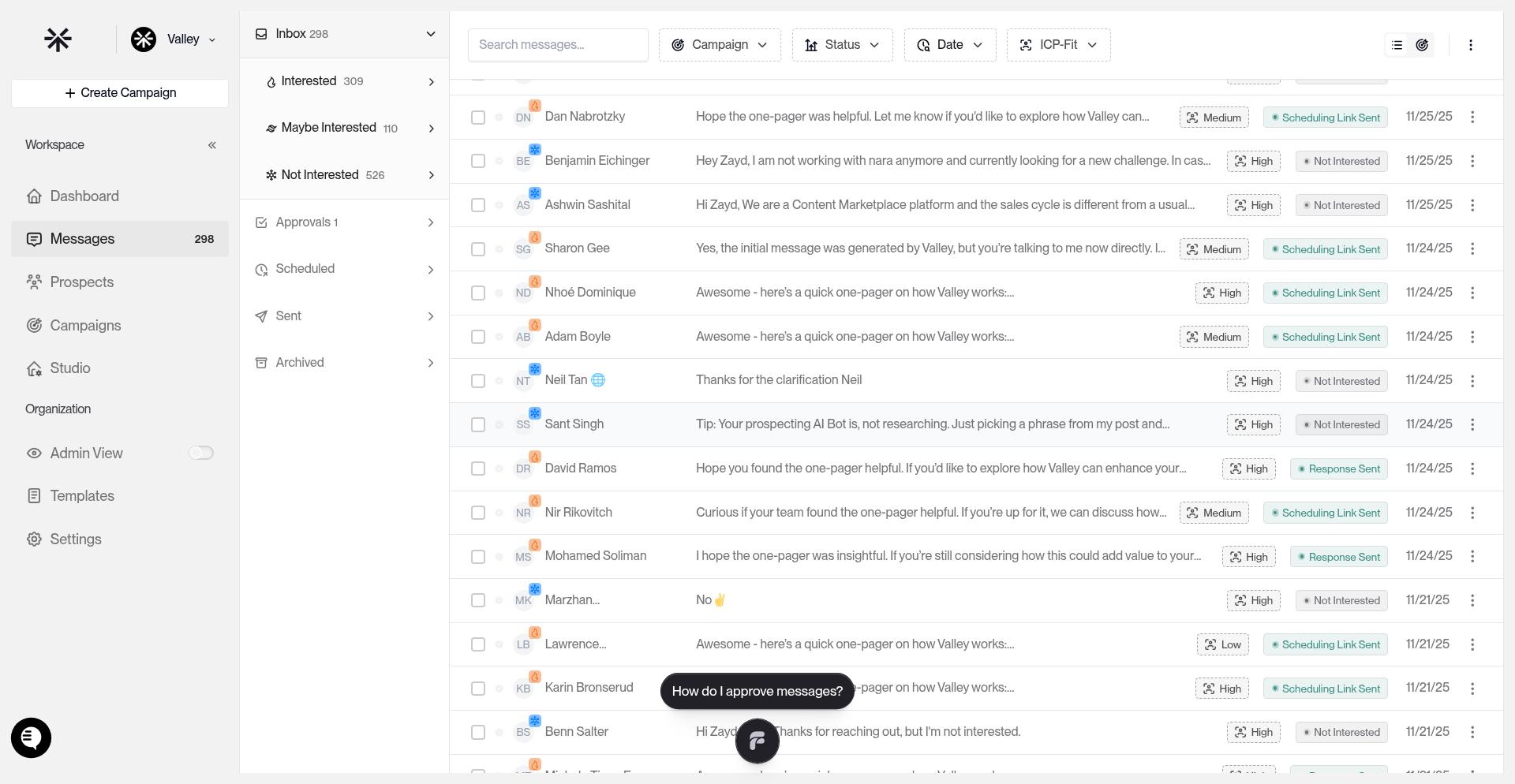
Access your message queues from the left sidebar:
Approvals — Messages pending your review (shows approval timestamps)
Scheduled — Approved messages queued to send (shows scheduled send times)
Filter Messages by Date
In the Scheduled section, use the Date filter to view messages by time range:
Today — Messages scheduled to send today
Tomorrow — Messages scheduled for tomorrow
This Week — Messages scheduled within the current week
Next Week — Messages scheduled for next week
Custom Range — Choose specific start and end dates
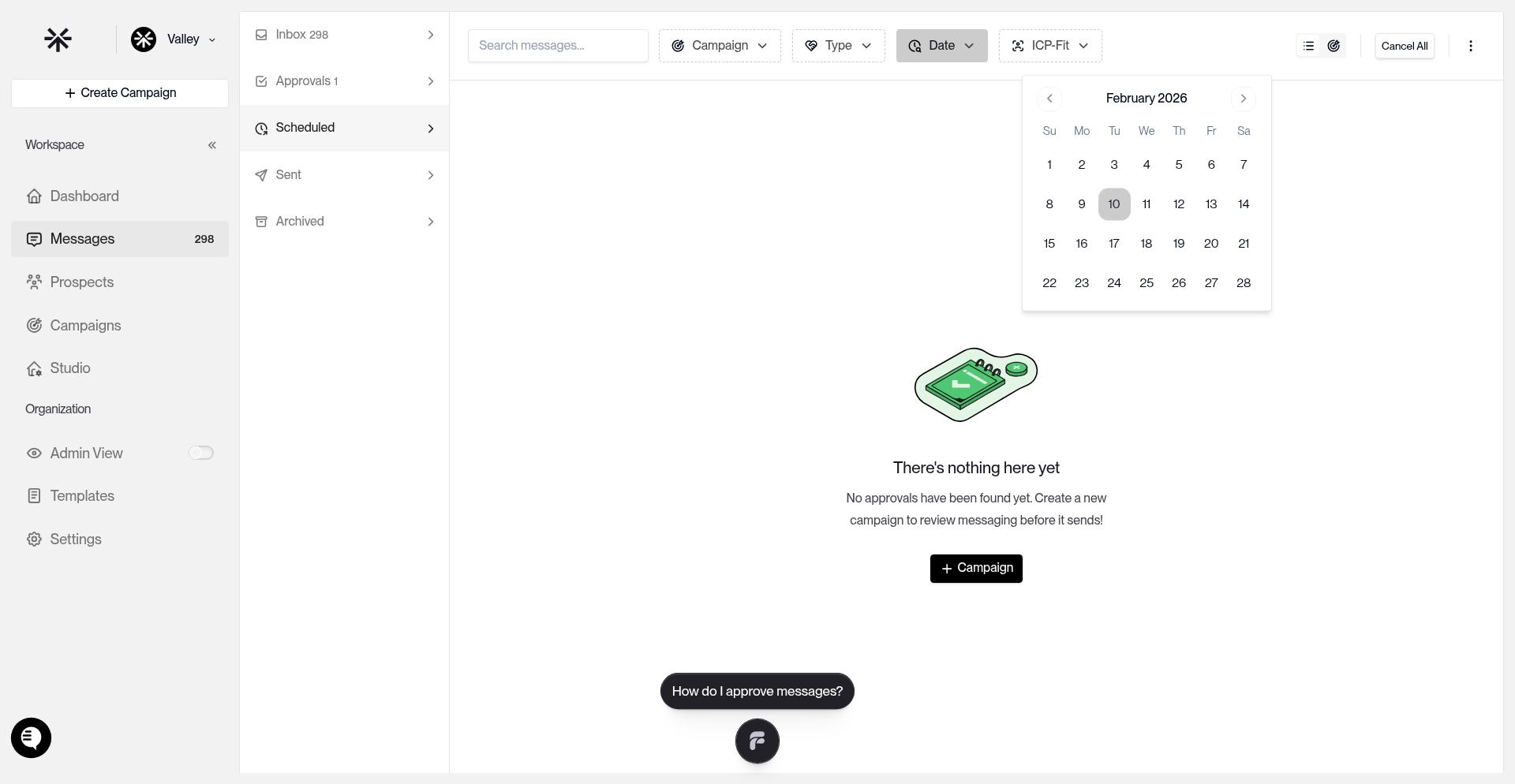
Sort Your Outreach Queue
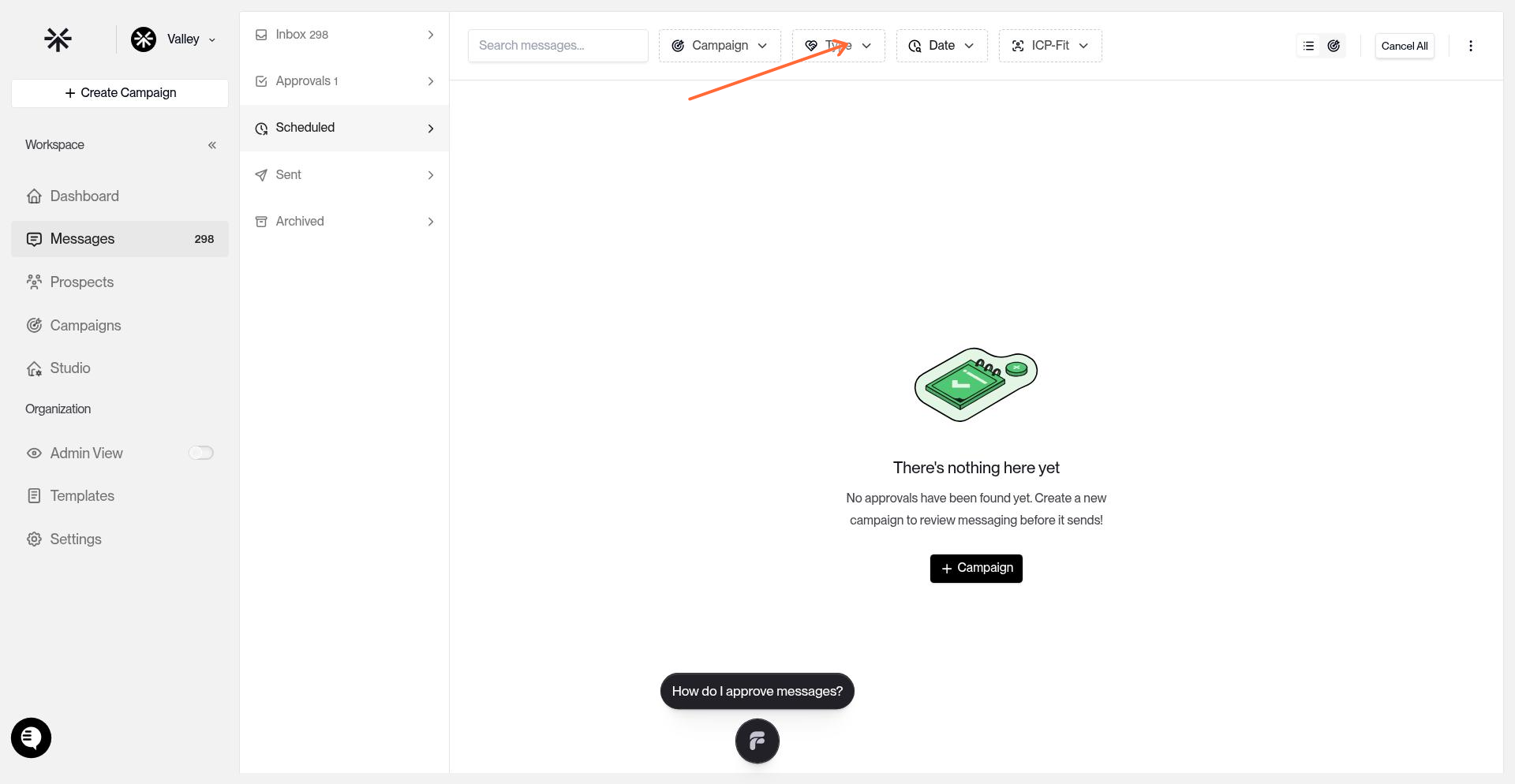
Messages in the Scheduled section display in chronological order by default, with the earliest scheduled messages appearing first. Use the Date filter to focus on specific timeframes and plan your outreach pipeline.
Filter by "Today" or "This Week" to see your immediate outreach queue and ensure messages align with your sending capacity.