
How to Change a Campaign Template
When you update a template that's being used in active campaigns, Valley automatically regenerates any pending messages that haven't been sent yet. This ensures your campaigns always use your latest messaging.
This only affects messages that are pending approval or queued to send. Messages that have already been sent cannot be changed.
How Template Changes Work
Templates in Valley define the structure and content of your outreach sequences. When you edit a template, you can apply those changes to campaigns currently using it—Valley will regenerate all unsent messages with your updated template.
Steps to Change a Template
1. Navigate to Templates
From your Valley dashboard, click Templates in the left sidebar.
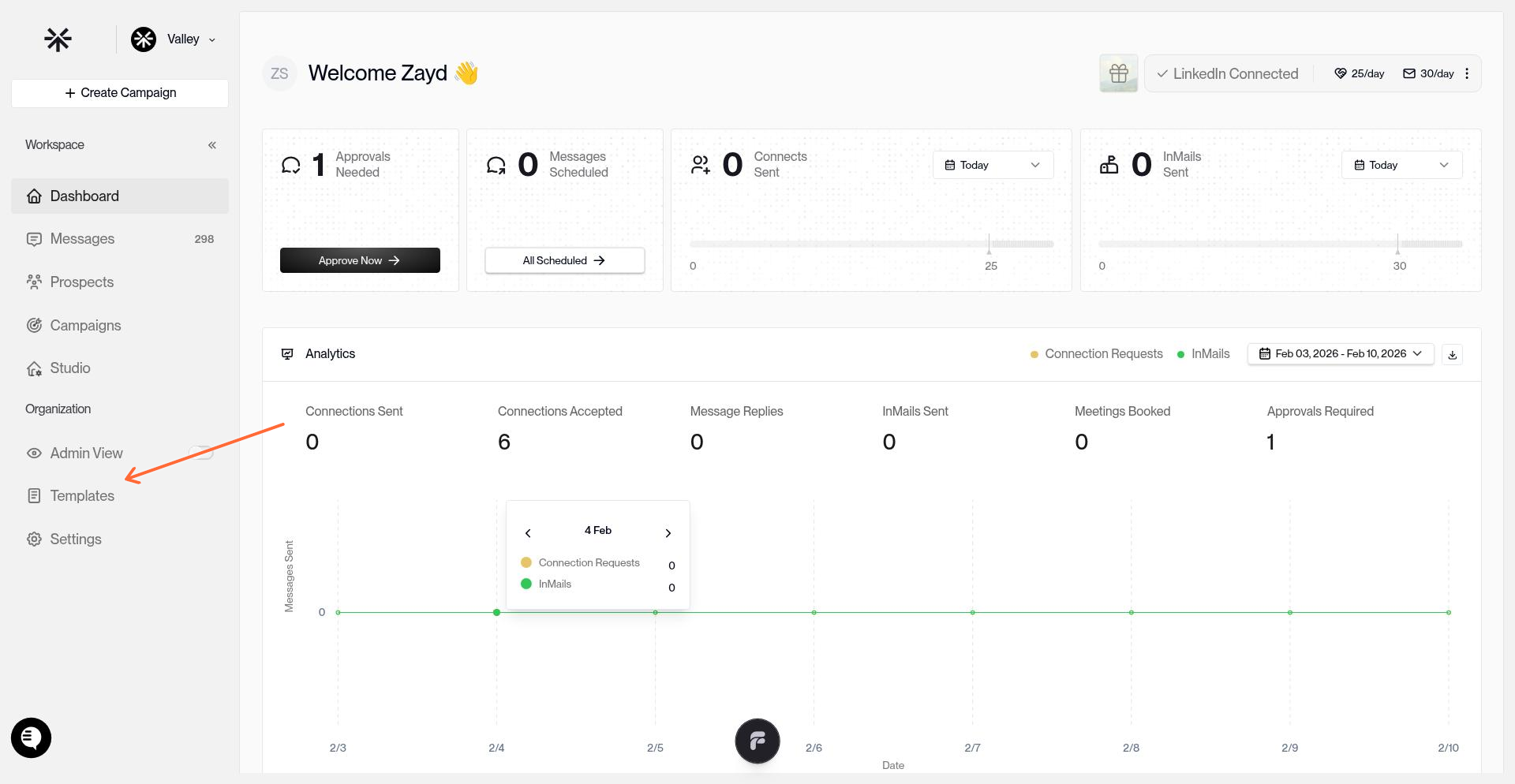
2. Select the Template to Edit
Click on the template you want to change. You'll see all template tabs at the top of the editor.
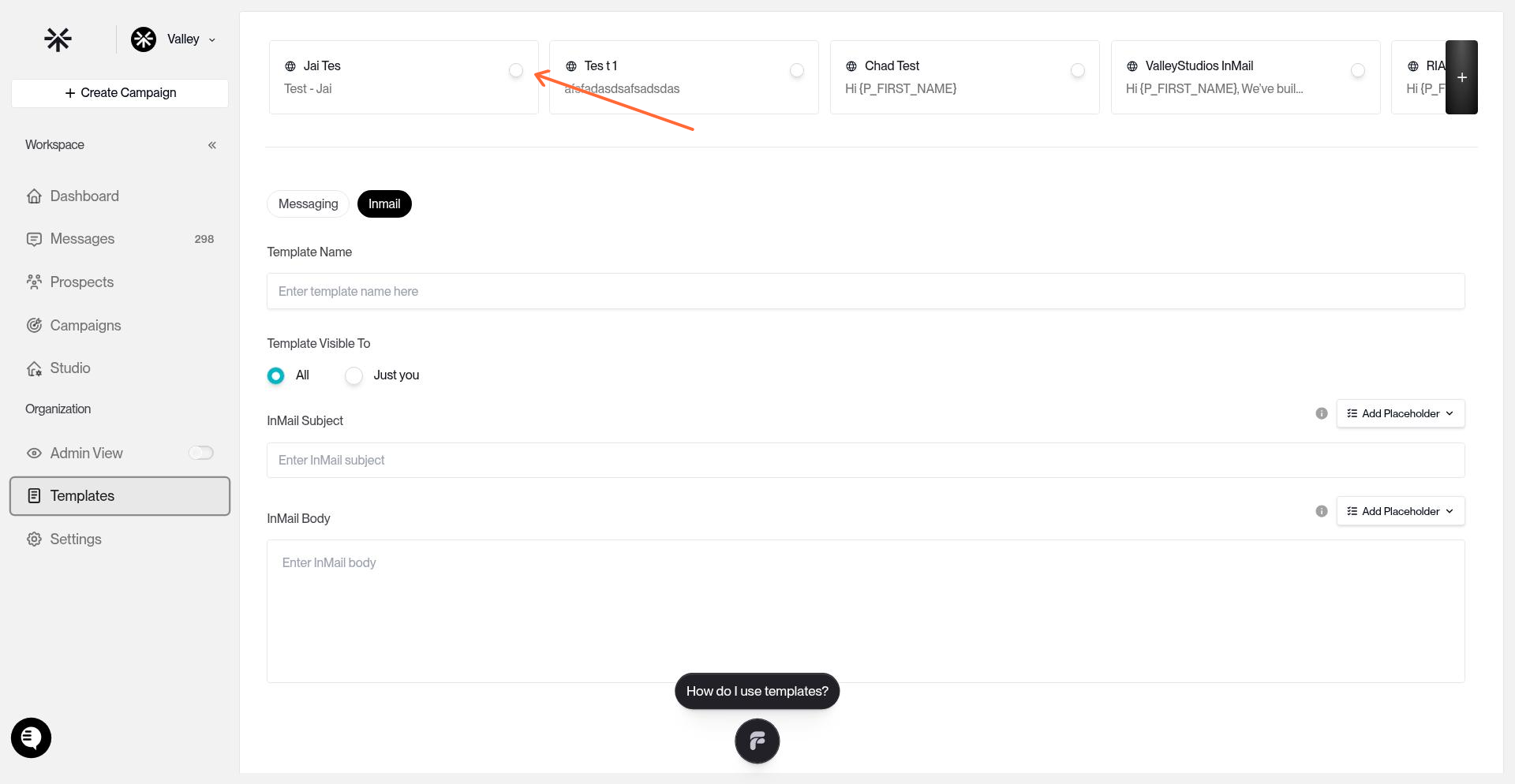
3. Make Your Changes
Edit your template content, messaging structure, or variables as needed. The template editor shows your sequence structure with fixed text and AI-personalized variables.
4. Save the Template
Click Save Changes at the bottom right of the template editor.
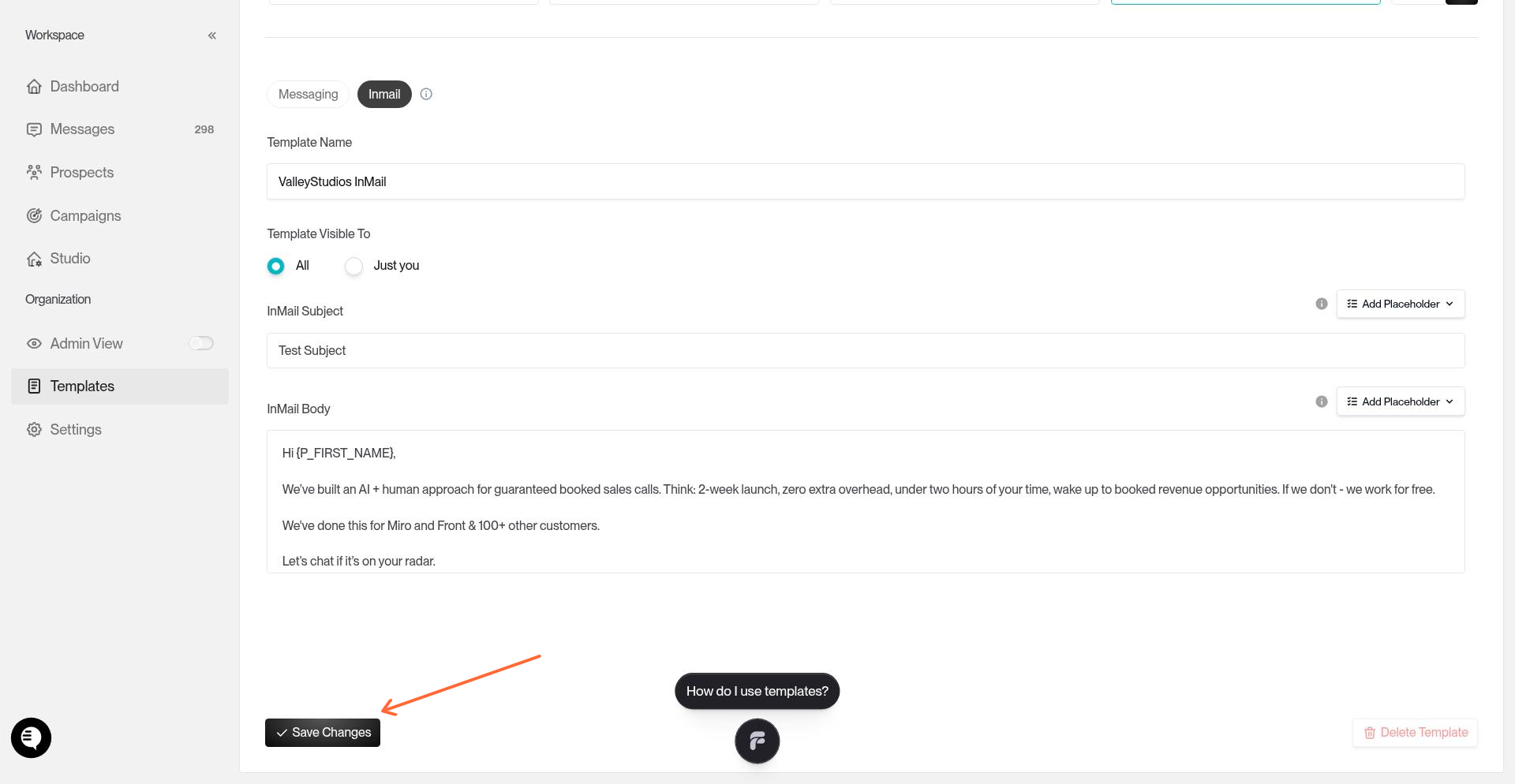
5. Review the Regeneration Warning
If your template is being used in active campaigns with pending messages, Valley will prompt you to confirm the change. The warning explains that unsent messages will be regenerated with your new template.
Regenerating messages rewrites all pending and queued messages for prospects who haven't been contacted yet. This ensures consistency but means previously generated messages will be replaced.
6. Confirm the Change
Click the confirmation button to apply your template changes. Valley immediately regenerates all pending messages in campaigns using this template.
What Happens to Pending Messages
When you change a template:
Pending approval messages are regenerated with your new template and stay in the approval queue
Queued messages (for campaigns on Autopilot) are regenerated before sending
Already-sent messages remain unchanged—you can't edit messages that prospects have already received
Messages in draft or being reviewed in Training Center are regenerated
When to Change Templates vs. Create New Ones
Change an existing template when:
You're refining messaging that's performing decently but needs improvement
You've found a better way to phrase your value prop or call-to-action
You want to fix a mistake or update outdated information across all campaigns using it
Create a new template when:
You're testing a completely different approach or messaging angle
You want to keep the old template running in some campaigns while trying something new in others
You're targeting a different audience that needs distinct positioning
Tips
Check campaigns before saving. If you're unsure which campaigns use a template, create a new one instead of changing an existing template that's performing well.
Review regenerated messages. After changing a template, spot-check a few pending messages in your campaigns' approval queues to make sure the regeneration worked as expected.
One change at a time. If you're running multiple campaigns with the same template, changing it affects all of them simultaneously. Make incremental changes so you can measure impact.
Templates vs. Writing Styles. Templates define your message structure and sequence. Writing Styles (in Studio) define voice, tone, and personalization rules. Both work together to generate messages.