
Connecting Your LinkedIn Account
CRITICAL: Valley connects to whichever LinkedIn account is logged in at the moment of connection. You CANNOT change the connected account afterward. Verify you are logged into the correct LinkedIn account before proceeding.
For Your Own LinkedIn Account
Follow these exact steps to connect your personal or business LinkedIn account:
Pre-requisite
Make sure you are logged into your correct LinkedIn account in your browser.
Connection Steps
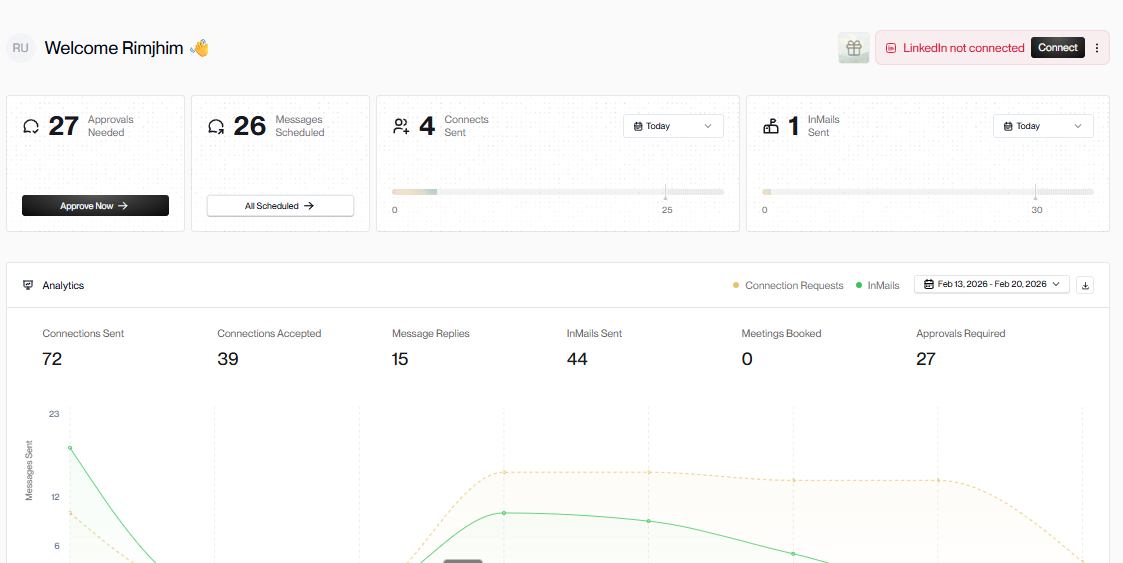
Go to app.joinvalley.co
Click the "Connect LinkedIn" button in the top right of your dashboard
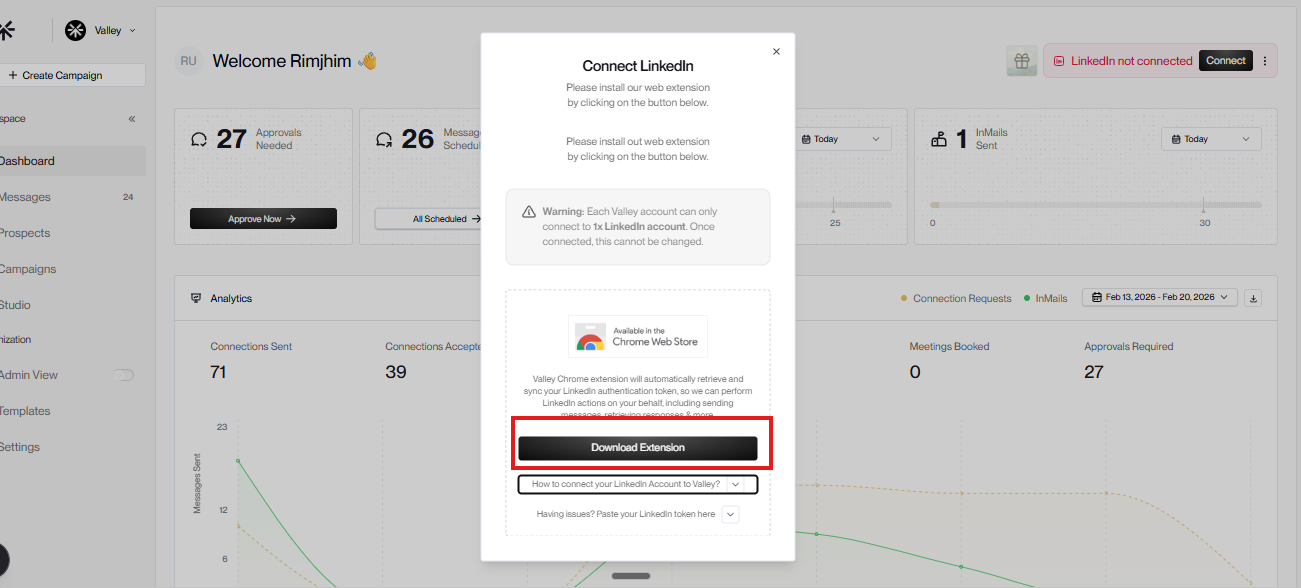
Download the Valley Chrome extension when prompted
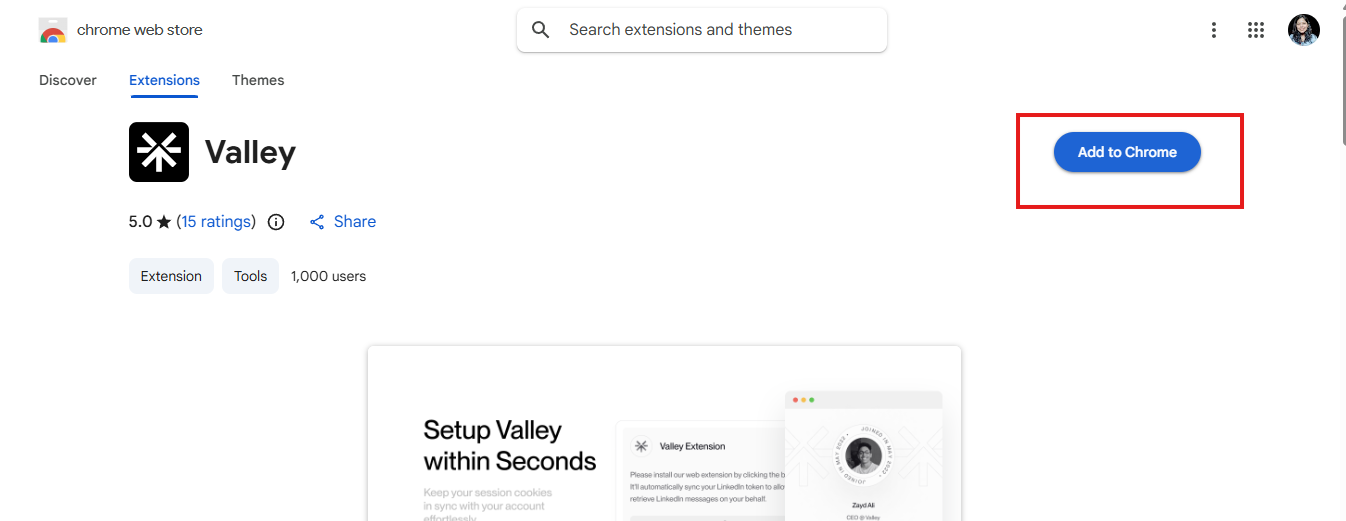
Click Add to Chrome
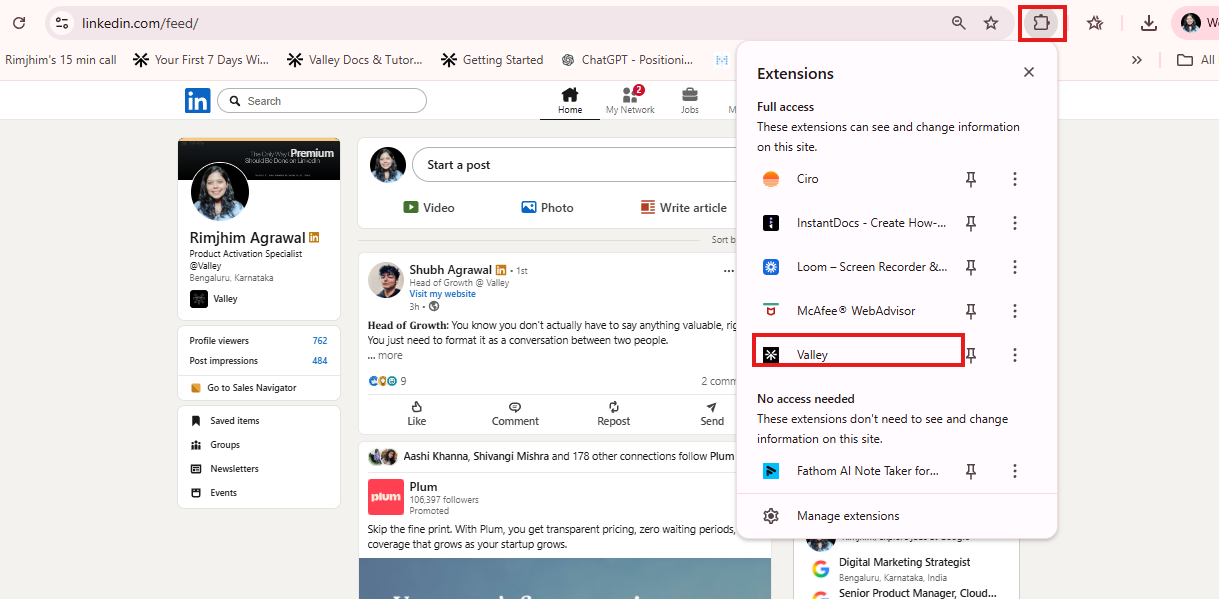
Click the puzzle piece icon in your Chrome toolbar and select Valley extention
Click "Connect LinkedIn" within the extension popup
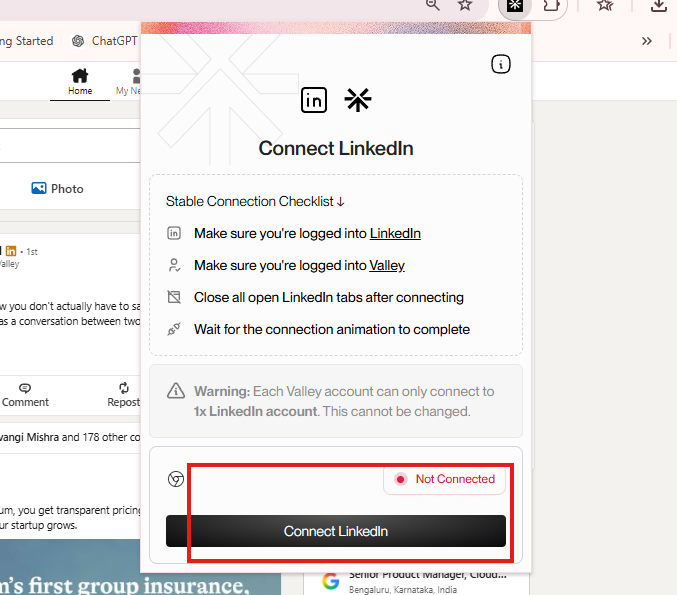
Wait 2-3 minutes for the connection to process
Refresh your Valley dashboard - your LinkedIn account should now be connected
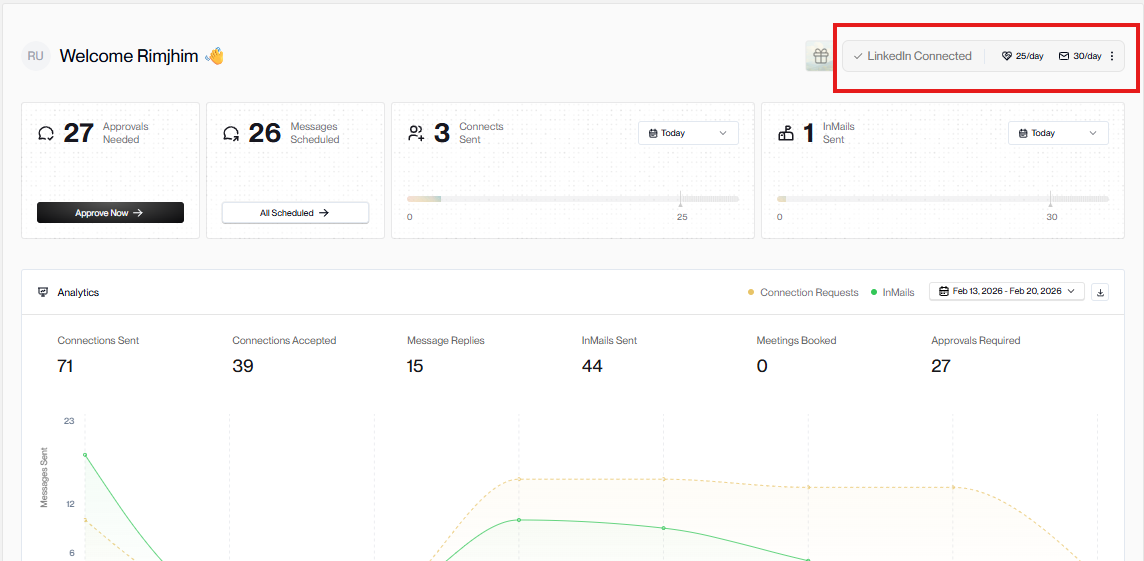
Pro Tip: If the connection doesn't appear after refreshing, wait another minute and refresh again. LinkedIn's authentication can occasionally be slow.
For Team Members or Clients
If you need to connect someone else's LinkedIn account:
Setup Their Seat First
In Valley, go to Settings > Manage Seats
Click "Invite" and add their email address
They should receive an invitation email (you can proceed with connecting their account without them accepting the invite)
Connect Their LinkedIn
Open a NEW Chrome browser profile (do not use your profile)
Log in to their LinkedIn account or whichever LinkedIn account you want to connect to this Valley seat. Once complete...
Log in to your Valley account on this Chrome profile
Toggle on Admin View on the left side panel
Scroll to the bottom of your dashboard and log in to the Valley account you just created by pressing the arrow (>) all the way to the right of their name on your screen (this will often be all the way at the bottom right - you may need to side scroll on their name depending on your screen size)
Then click "Connect LinkedIn" and follow the standard connection flow above
Once connected, you can go back to your Chrome profile and manage all the following actions on their account through Admin View
You only need to use separate Chrome profiles to connect new accounts from one computer. If the member you invited can connect their own LinkedIn account themselves, tell them to follow the steps under "For Your Own LinkedIn Account" above.
Chrome Profiles Are Critical
Each LinkedIn account must have its own Chrome profile. This is non-negotiable:
One Chrome profile = One LinkedIn account
Never connect multiple LinkedIn accounts from the same Chrome profile
If you mix accounts, Valley will connect whichever was last logged in
CRITICAL: Using the same Chrome profile for multiple LinkedIn accounts will cause connection failures or connect the wrong account. Always use separate Chrome profiles.
Troubleshooting
Connection Didn't Work
Verify you're logged into the correct LinkedIn account
Clear your browser cache and try again
Make sure the Valley extension is enabled in Chrome
Make sure you're using Chrome - the Valley extension only works in Chrome, not Safari, Firefox, or other browsers
Wrong LinkedIn Account Connected
Unfortunately, once connected, you cannot change the account. You'll need to create a new seat and connect the correct account.