
How to Train Messages with Valley Messaging V4
Before your first campaign, create a new Product and Writing Style. Also make sure you create a new campaign. Valley V4 messaging is only applicable for new campaigns.
Three Ways to Train Valley
You can train Valley to write in your voice in three ways:
Edit your messages directly. With every edit, Valley learns. It analyzes the difference between your edit and its draft, then converts that into a rule you can apply to future messages.
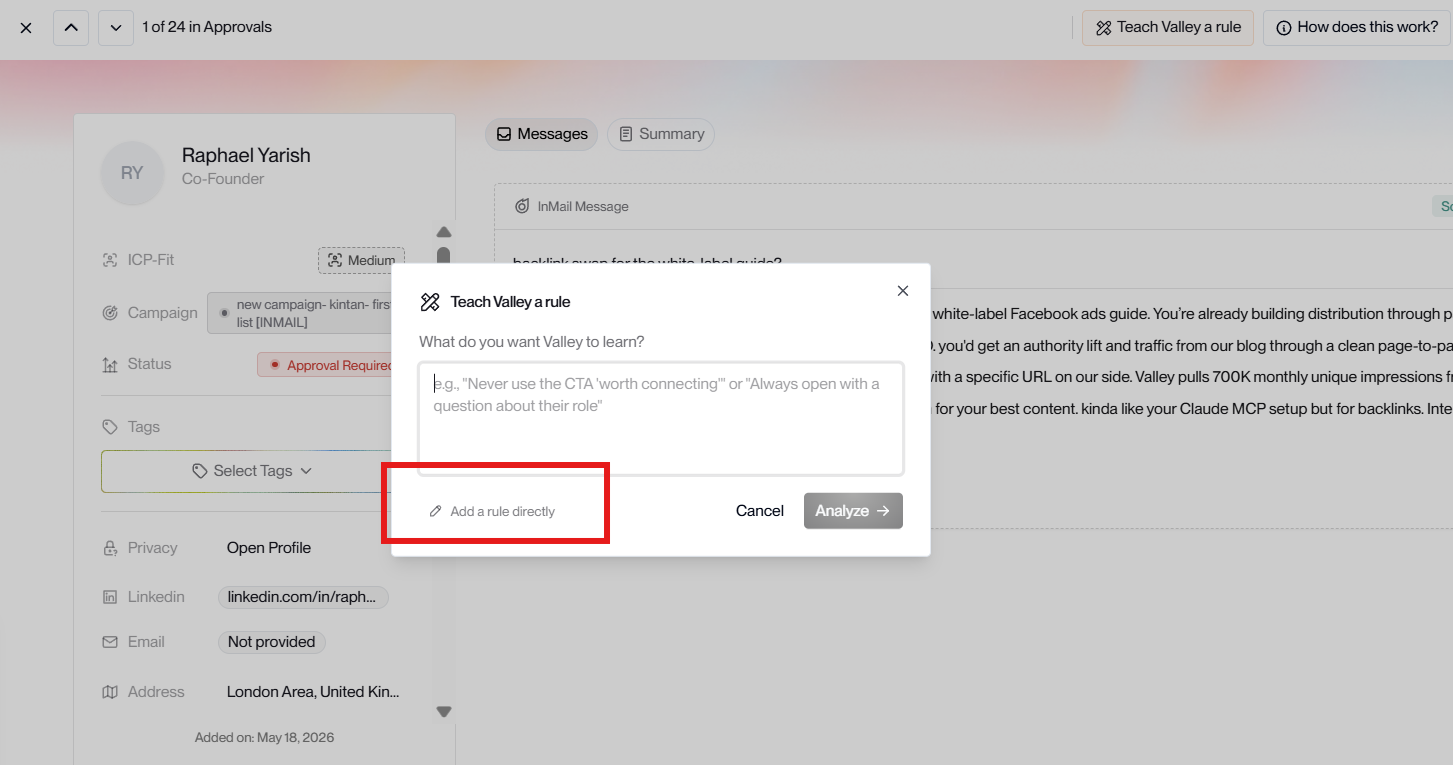
Tell Valley what to fix. Click 'Teach Valley a rule' and describe what feels off in plain words. Valley may ask a clarifying question if it needs one, then creates a rule the same way - no edit required.
Make changes directly in Studio. Make a change in Studio. Click Save, then select which campaigns you want to update with the new rule.
1. Edit your messages directly in Approvals
Valley generates personalized messages for every prospect in your active campaigns, using your Product, Writing Style, and research from 60+ data points. Messages land in Approvals for your review.
How It Works
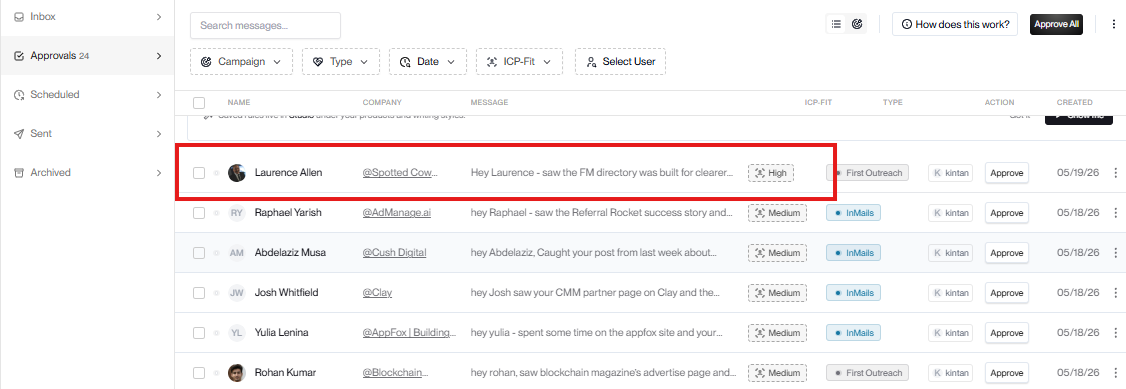
- Pick any message in your queue
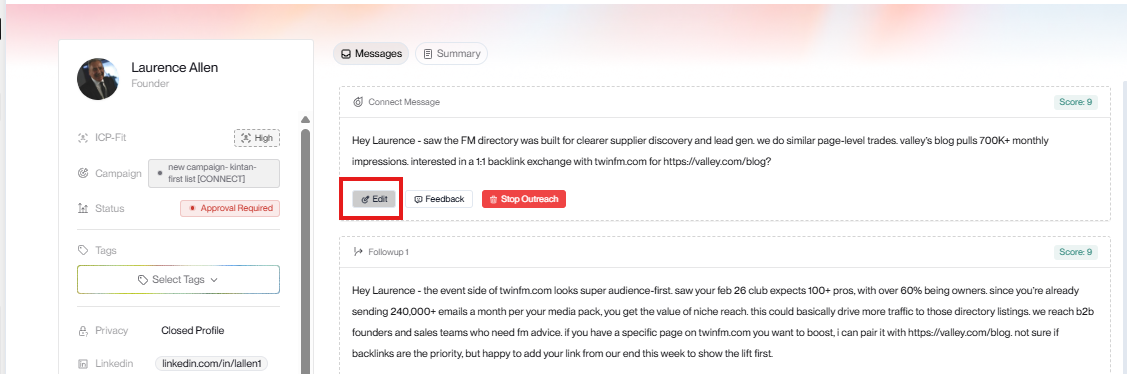
Click a row to open the message. The pencil to the right opens the editor. For a Connect campaign, editing applies to your connect note and every follow-up. For an InMail campaign, editing applies to the InMail.
- Edit anything you want
Even a small change is enough. Type your edit and click Done. Valley keeps the original and the edit so it can compare.
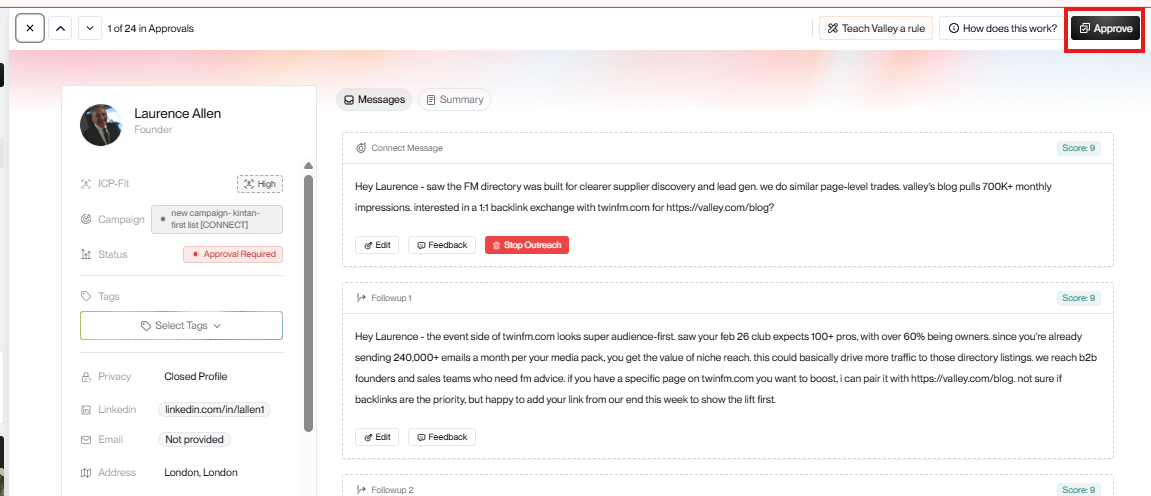
- Approve, and Valley starts learning
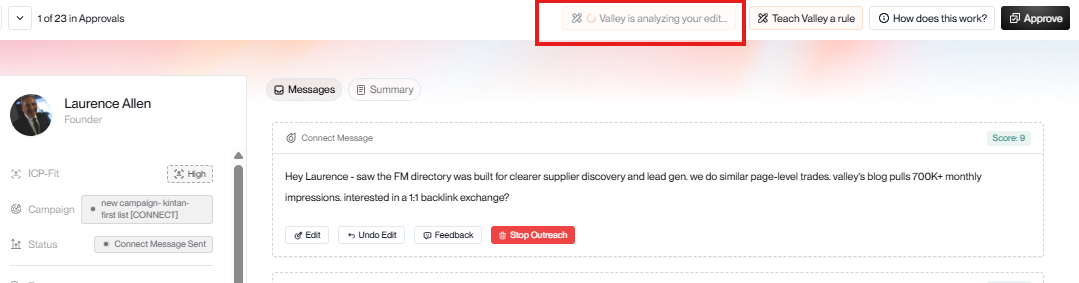
Hit Approve. Valley flips to the next message automatically. Next to the Approve button you'll see an Analyzing indicator while Valley extracts what changed.
Make as many edits as you need- for both your initial message and follow-ups across multiple prospects before hitting Regenerate. Your rules won't reset between edits. They accumulate as you go, so when you're ready, you can apply everything at once.
- Valley extracts a rule from your edit
It saves the rule to your writing style or product. Click the rule chip when it appears to see exactly what Valley learned and edit it if you want.
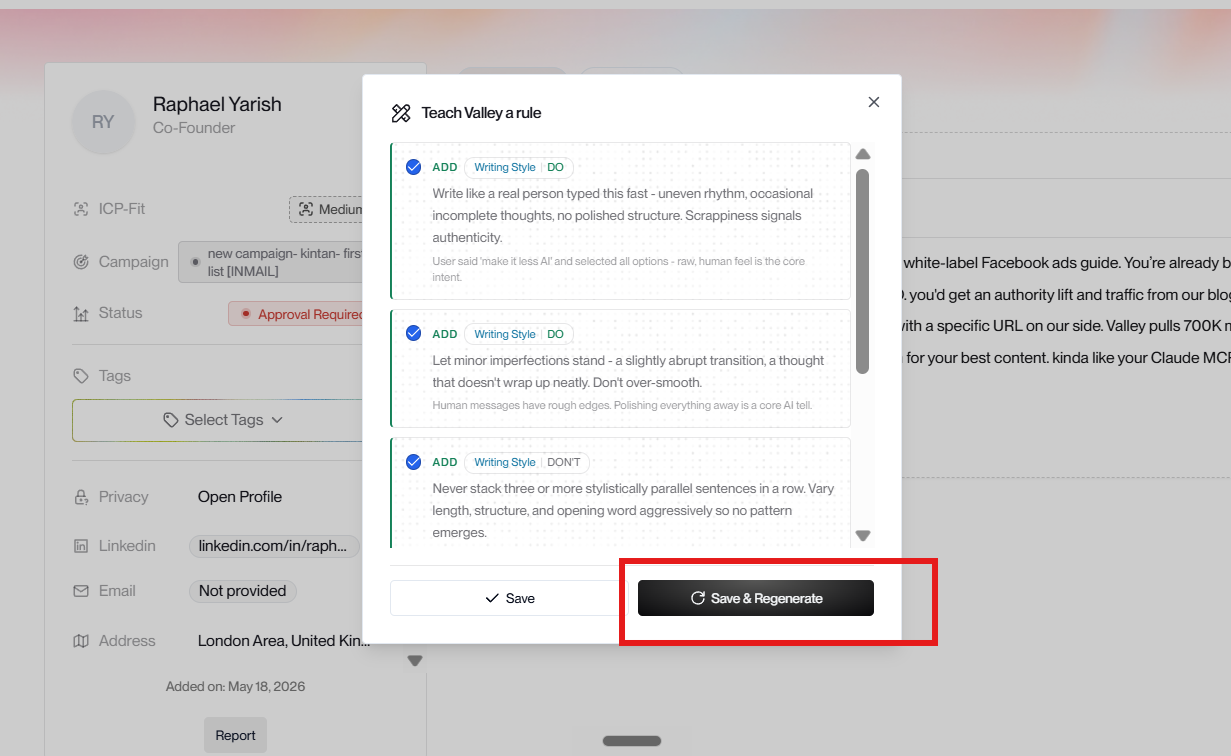
- Save it, or save and regenerate
Save to Studio applies the rule to future messages only. Save and regenerate rewrites every unsent message in your queue right now using the new rule.
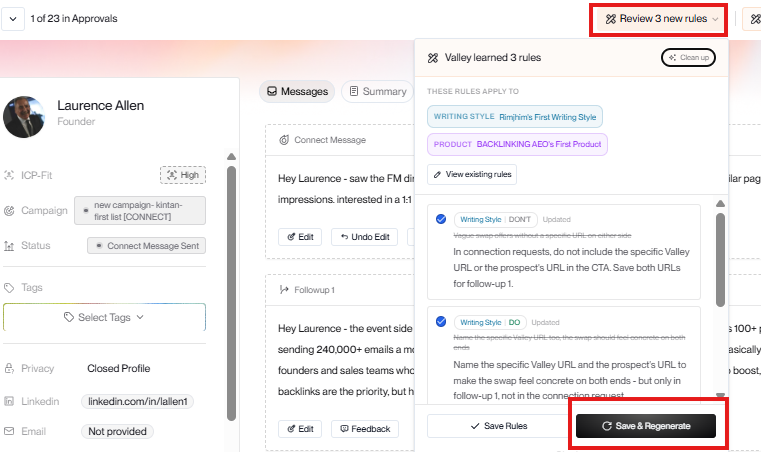
- Your queue refreshes
Valley rewrites every pending message using your rule. You can keep approving while it runs.
2. Tell Valley what to fix
Don't know exactly what to change?
- Click 'Teach Valley a rule'.
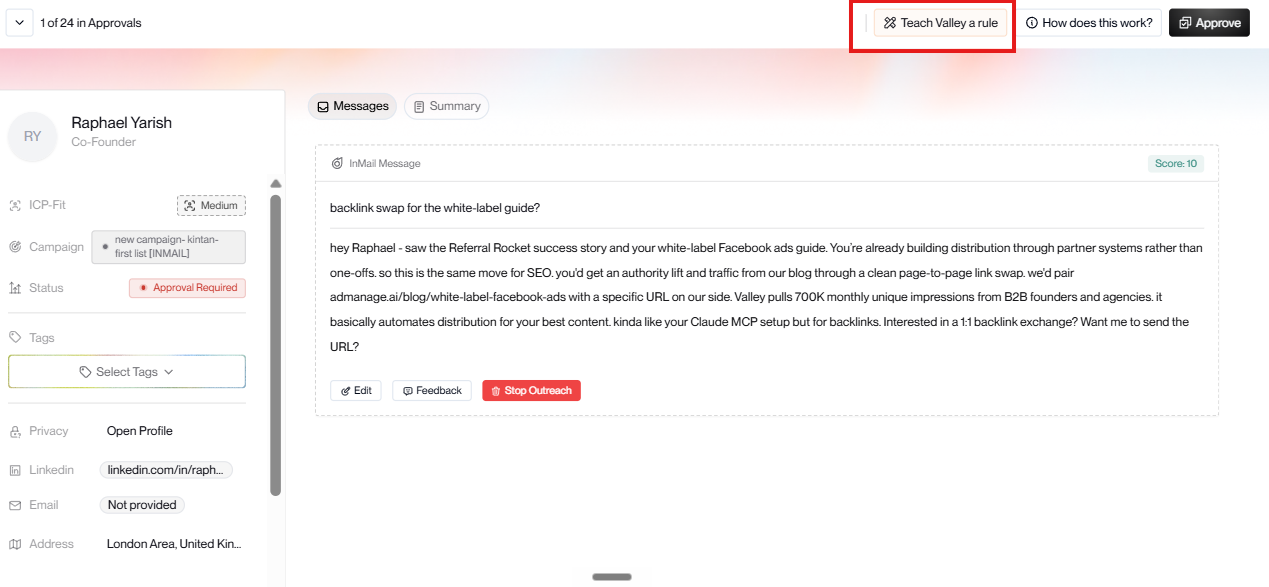
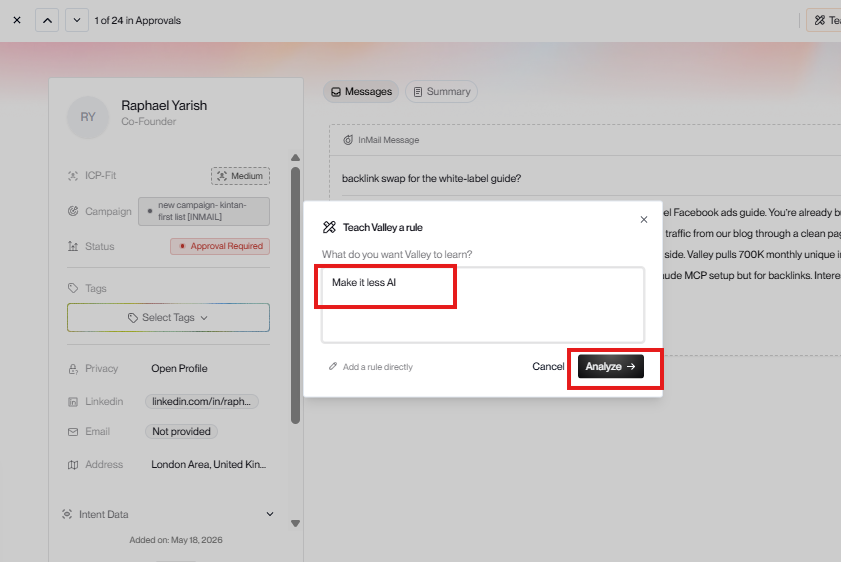
-Type your feedback in simple words
-Valley may ask clarifying questions
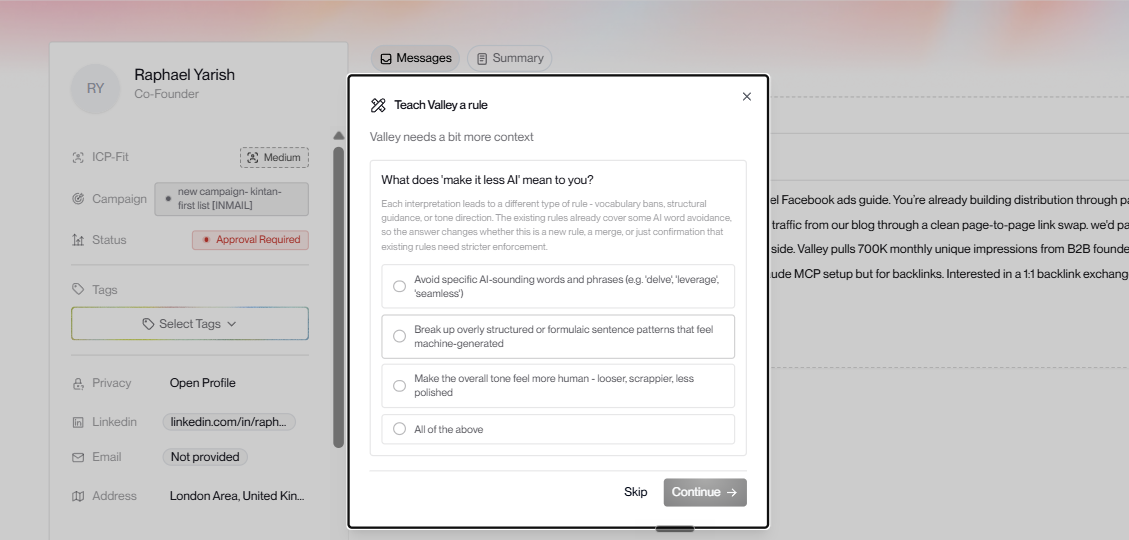
-Then it creates a rule the same way it would from an edit. Save it or save and regenerate - same loop, no manual editing required.
Pending approvals with Autopilot ON is normal behavior, not a bug. Valley prepares messages in advance so there's always a queue ready.
3. Make edits directly in the studio
You can edit your dos and don'ts without leaving this screen. Just click "Teach Valley a Rule".
Make a change in Studio. Click Save & Regenerate, then select which campaigns you want to update with the new rule.
Valley will regenerate the messages based on your updates.
The Learning Loop
After 3-5 edits, you'll see consistent rules accumulate in your Writing Style. Review them. Save them. Regenerate when you want immediate impact.
Click into any updated message to see what changed. Edit a few more, save and regenerate, then toggle Autopilot when Valley sounds like you.