
Do Not Contact List
Do Not Contact (DNC) List
What Is the DNC List?
The Do Not Contact list is a workspace-wide blocklist. Anyone on the DNC list will never receive outreach from Valley, across all campaigns, at any time.
Workspace-wide: The DNC list applies to your entire workspace, not just one campaign
Immediate enforcement: Anyone added to DNC is instantly removed from all active campaigns and won't be targeted in future campaigns
Persistent: If you delete a campaign, your DNC list remains. People you've blocked stay blocked
When to Use the DNC List
Existing customers (don't prospect people who already bought from you)
Competitors (prevent tipping off your outbound strategy)
Your own company employees (block internal team from getting prospected)
Partners and investors (relationships too sensitive for cold outreach)
People who explicitly asked you to stop (compliance requirement)
Bad-fit companies you'll never target
Active deal prospects (avoid automation interfering with live negotiations)
Adding People to the DNC List
A prospect can be added to DNC by someone on your team in a few ways:
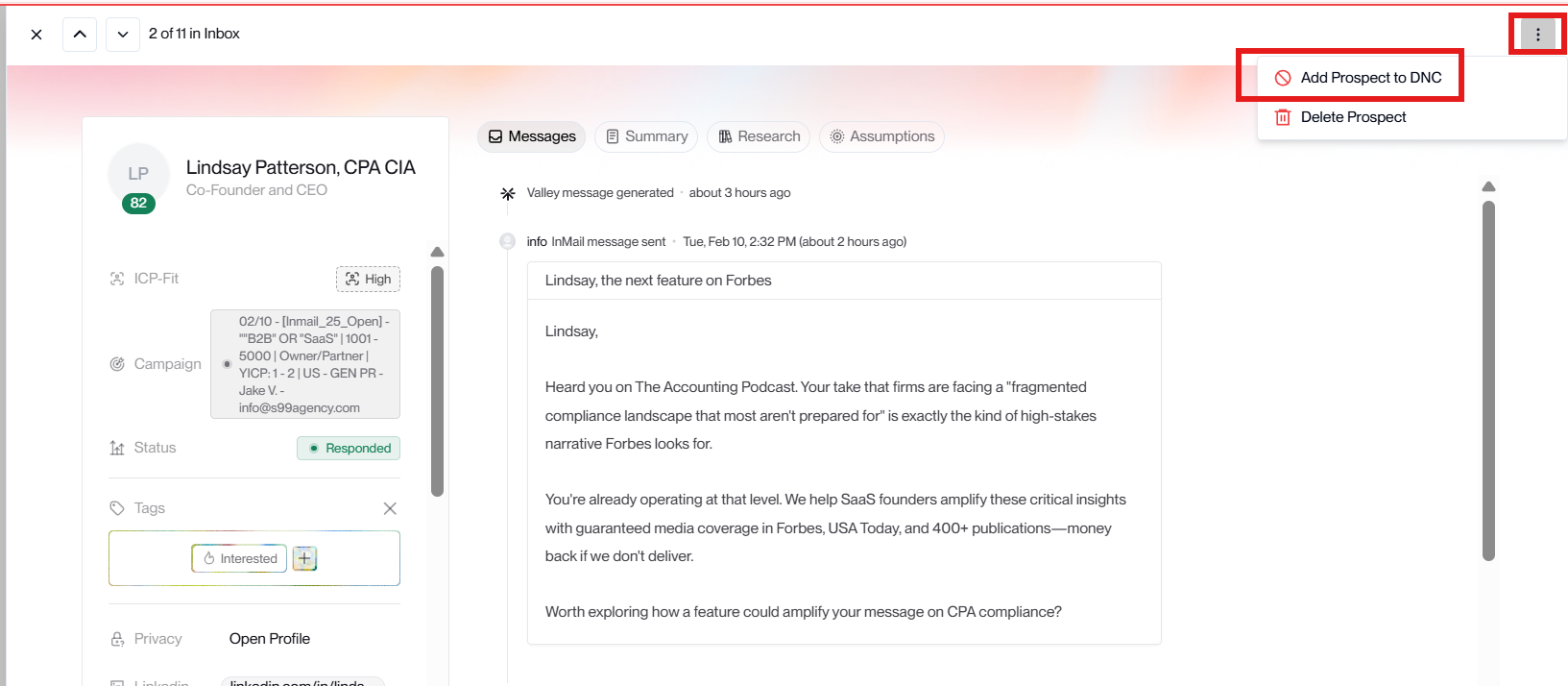
1. One at a Time (From the Inbox)
Click the three vertical dots in a conversation and select “Add Prospect to DNC”
2. Bulk Upload (CSV)
The fastest way to block large groups is uploading a CSV file.
Steps:
Go to Settings > Do Not Contact
Click "Upload CSV"
Select your .csv file
Valley validates the file and shows a preview of records to be added
Click "Confirm Upload"
CSV Format:
The primary identifier is LinkedIn URL. Your CSV should include:
linkedin_url (required) - Full LinkedIn profile URL, e.g., https://www.linkedin.com/in/johndoe
first_name (optional)
last_name (optional)
company (optional)
email (optional)
LinkedIn URL is the primary identifier. Valley matches DNC entries by LinkedIn profile URL. Without it, the match may not work correctly. If you are uploading prospects (individuals), make sure the list has the personal LinkedIn URL. If you are uploading prospects (companies), make sure the list has the company's LinkedIn URL.
Technical requirements:
File format must be .csv (not .xlsx or .xls)
UTF-8 encoding recommended
Include a header row with column names as shown above
Keep it simple - plain text, no formatting
Example CSV:
linkedin_url,first_name,last_name,company
https://www.linkedin.com/in/johndoe,John,Doe,Acme Corp
https://www.linkedin.com/in/janesmith,Jane,Smith,Beta Inc
https://www.linkedin.com/in/bobwilson,Bob,Wilson,Gamma LLC
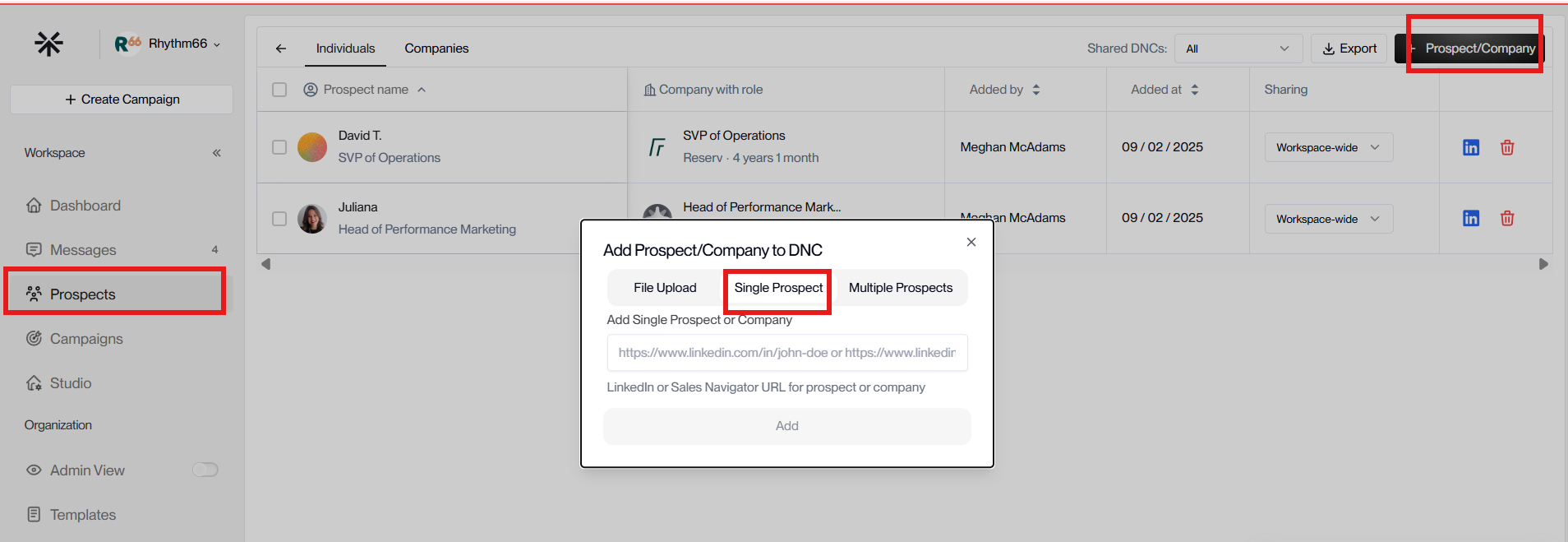
3. Adding a single prospect using their LinkedIn URL
→ Go to Prospects tab → Click Add to DNC → A popup opens → select Single prospect → Paste the LinkedIn profile URL of the prospect → Click Add
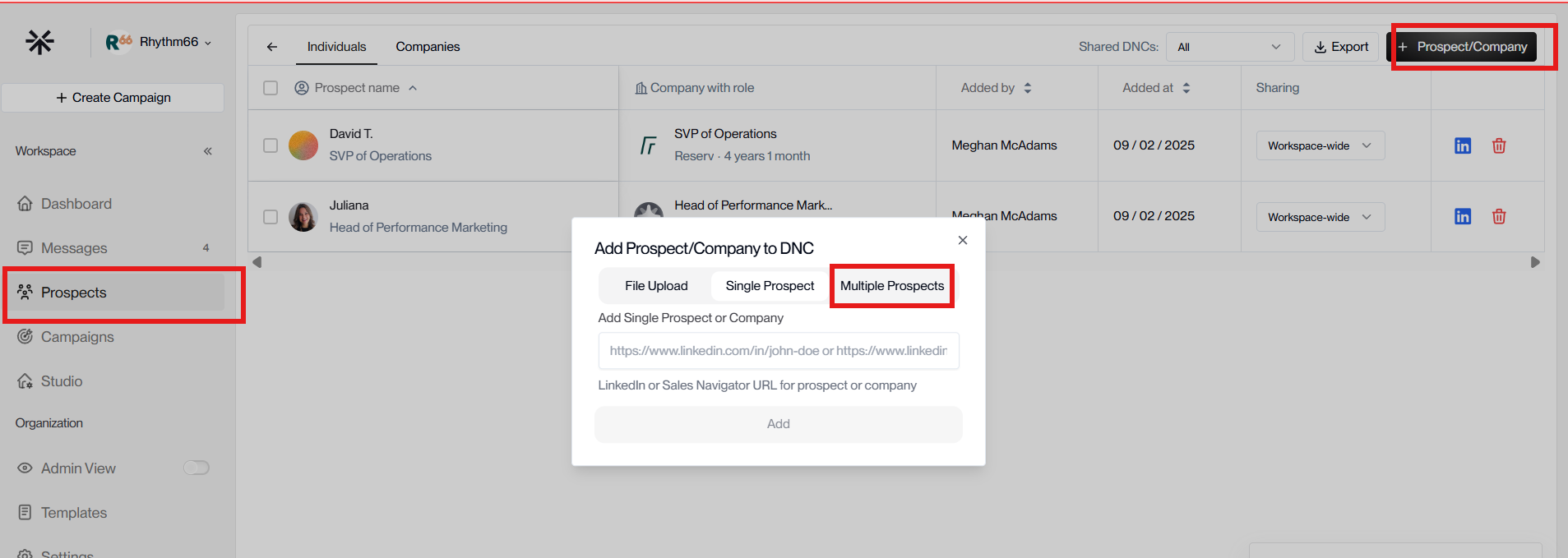
4. Adding multiple prospects using a Sales Navigator search URL
→ Go to Prospects tab → Click Add to DNC → In the popup, select Multiple prospects → Paste the Sales Navigator search URL → Click Add
Blocking Entire Companies
Block all employees from a company by adding its LinkedIn company URL to the DNC list. Anyone working at that company—now or in the future—will be excluded from all campaigns.
How to Upload Company URLs
Go to Prospects > Do Not Contact > Companies tab. Click "Prospect/Company" to open the upload dialogue.
Upload options:
File Upload: Upload a CSV with a
linkedin_urlcolumn containing LinkedIn company URLs (e.g.,linkedin.com/company/acme-corp). Same format as individual profile CSV—just use company URLs instead of profile URLs.Single Company: Paste one LinkedIn company URL (e.g.,
https://www.linkedin.com/company/acme-corp).Sales Navigator: Paste a Sales Navigator company search URL to bulk-block all matching companies.
Understanding Upload Status
After uploading, Valley processes each company URL and displays one of three statuses:
Success: Company appears in the Companies tab immediately. All employees are now blocked.
Rate-limited: LinkedIn temporarily blocked the request. Valley automatically retries these overnight at 2 AM Eastern Time.
Failed: Invalid URL or company doesn't exist on LinkedIn. These won't be retried—fix the URL and re-upload.
If you uploaded 100 companies but only see 60 in your list, the missing 40 are likely rate-limited and will retry overnight. Check back the next day.
Verifying Retry Completion
Valley retries rate-limited company URLs nightly at 2 AM Eastern. To verify all retries finished:
Go to Prospects > Do Not Contact > Companies tab
xport the list and compare against your original CSV
If companies are still missing after 2-3 days, the URLs likely failed permanently. Re-check the LinkedIn URLs and re-upload.
Company blocking is comprehensive—it blocks current and future employees. If you block Google, Valley will never prospect anyone with Google in their current employment, even new hires who join after you added the block.
Managing Your DNC List
View Your List
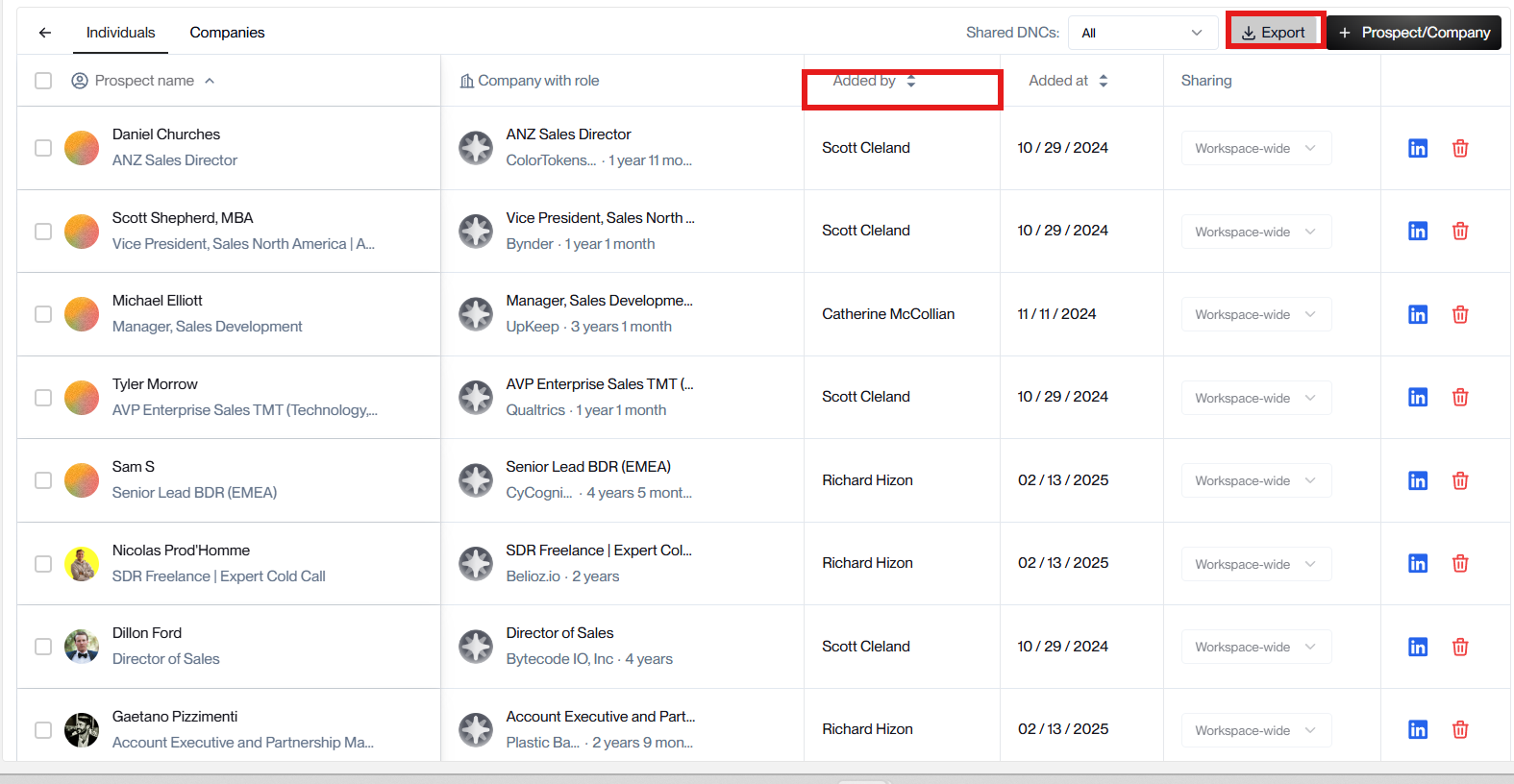
Go to Prospects > Do Not Contact. Switch between the Individuals and Companies tabs to see blocked profiles and companies. Export either list using the "Export" button.
The "Added by" column shows which team member added each entry.
Remove Someone (If Added by Mistake)
Go to Settings > Do Not Contact
Search for the person
Click the remove icon next to their name
Confirm removal
Removing someone from DNC does NOT automatically re-add them to campaigns. They'll only be targeted if you explicitly import them into a new campaign.
Best Practices
Upload your customer list on Day 1
Before launching your first campaign, upload your entire existing customer list to DNC. This prevents the most embarrassing mistake: prospecting people who already bought from you.
Upload your employee list
Add all internal team members to DNC. Valley should never prospect your own organization.
Monthly DNC syncs from your CRM
As you close new customers each month, export them from your CRM and upload a fresh DNC CSV to Valley. This keeps your list current.
Block competitor companies early
Upload competitor company URLs to prevent prospecting their employees. This keeps your outbound strategy private and avoids awkward conversations with competitor staff.
Common Mistakes
Not uploading customer list before first campaign: Valley prospects your existing customers. Upload your customer list to DNC before launching anything.
Using .xlsx instead of .csv: Upload will fail. Open the file in Excel or Google Sheets, Save As CSV, and re-upload.
Missing LinkedIn URLs in CSV: Valley can't match the people without LinkedIn URLs. Export with LinkedIn URLs from your CRM or Sales Navigator.
Only removing from one campaign instead of DNC: They get picked up by future campaigns. Always add to DNC, not just remove from campaign.
Never updating DNC list: New customers start getting prospected after their close date. Set up a monthly export from your CRM.
Expecting all company URLs to load immediately: If companies are missing after upload, they're likely rate-limited by LinkedIn. Valley retries them nightly at 2 AM Eastern—check back the next day.