
Manage prospects with Warm List filters
Warm List filters help you narrow prospects by ICP fit, status, signal type, and profile privacy, then act on batches—move to campaigns, delete, or add to DNC.
Before you begin: Make sure you have active Warm Lists capturing signals. See What Are Warm Lists? for setup.
Access Warm List filters
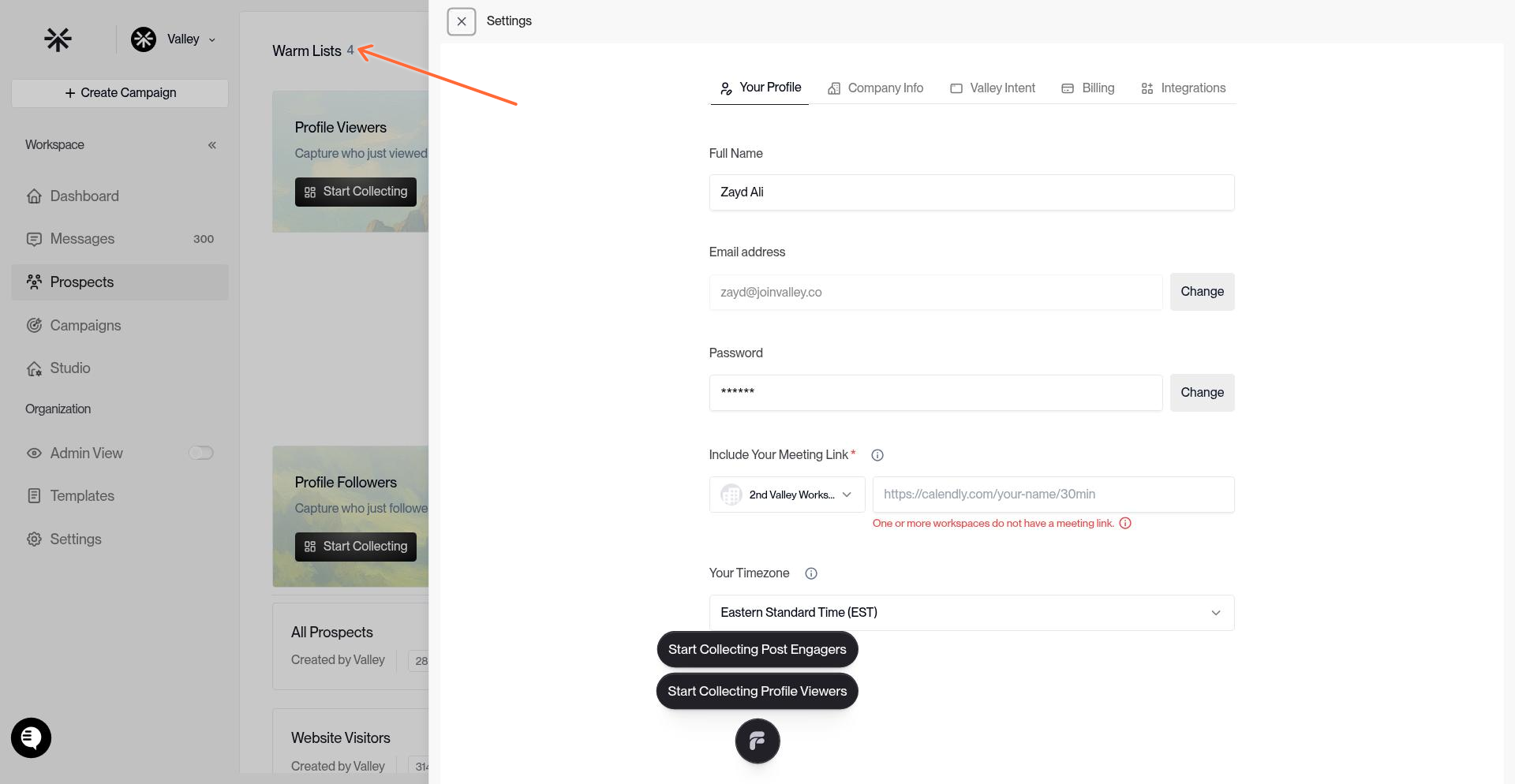
Click Warm Lists in the left sidebar, then select any list (Profile Viewers, Post Engagers, etc.) to open the prospect table.
Apply filters
Use the filter controls above the prospect table:
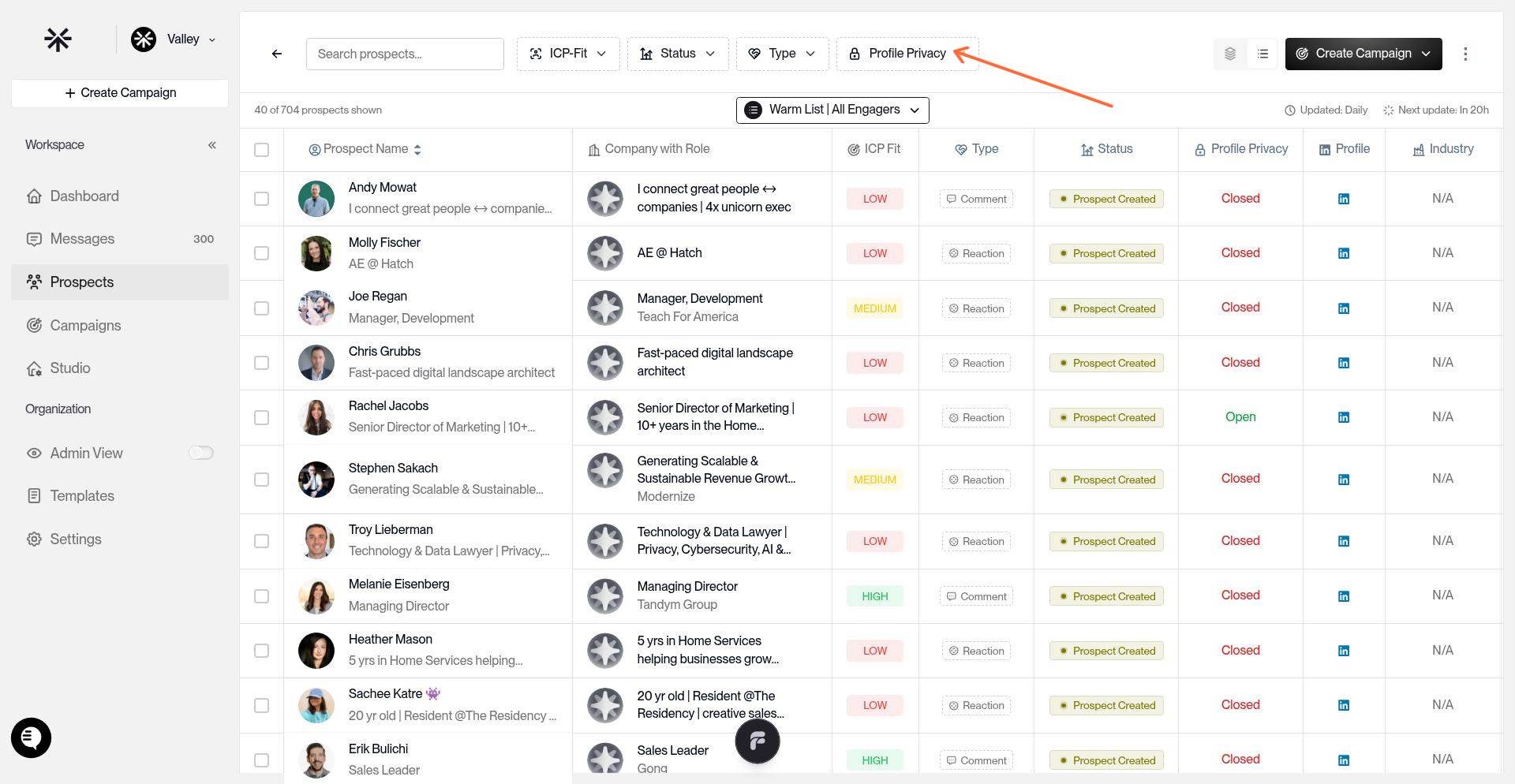
ICP-Fit: Filter by High, Medium, or Low to focus on best-fit prospects.
Status: View prospects by workflow state (Prospect Created, Approval Required, Scheduled, Sent, Replied, etc.).
Type: Filter by signal source (Profile Viewer, Post Engager, Follower, etc.).
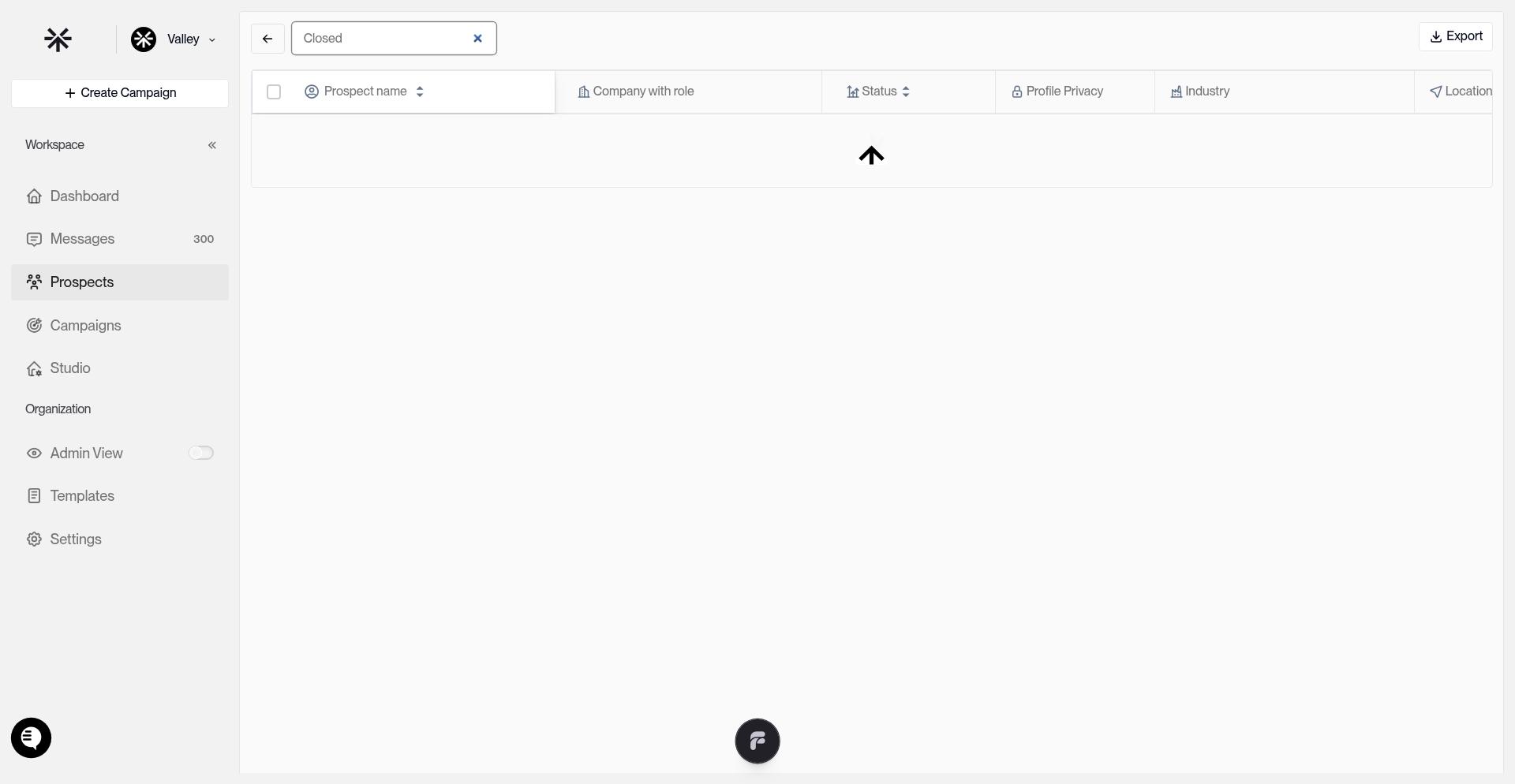
Profile Privacy: Show only Open or Closed LinkedIn profiles.
Click any filter button, select your criteria, and the table updates immediately. Combine multiple filters to narrow results.
Use ICP-Fit filters to review Medium or Low prospects before auto-deletion. High-fits route to campaigns daily by default.
Select prospects for bulk actions
Once filtered, select prospects:
Individual: Check boxes next to specific prospects.
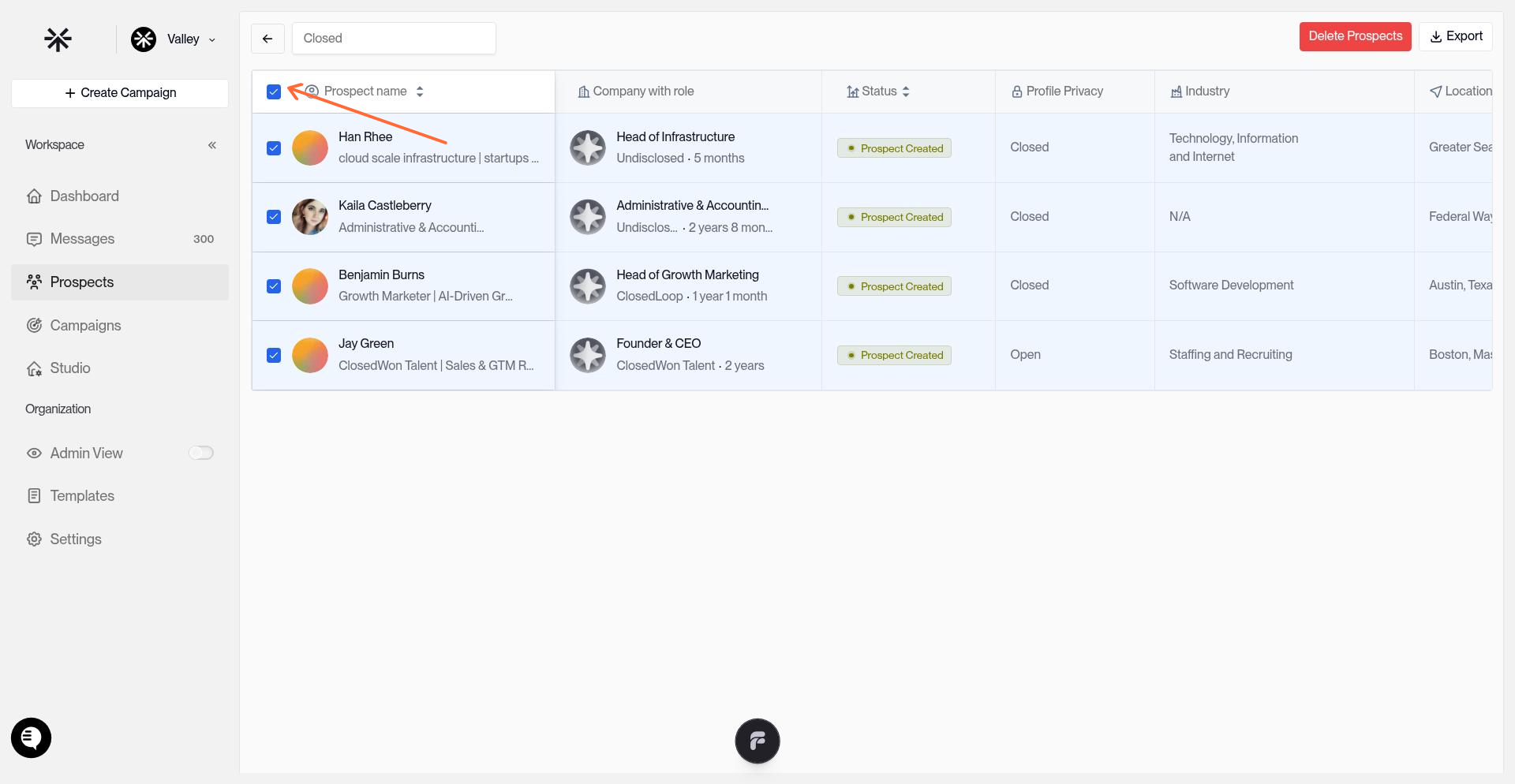
All visible: Click the header checkbox to select all on the current page.
All in filter: After selecting all visible, click "Select all X prospects" banner to grab the entire filtered set.
Perform bulk actions
With prospects selected, use these actions:
Delete prospects
Click Delete Prospects (red button, top right) to permanently remove selected prospects from the list. Use this to clear low-quality leads or duplicates.
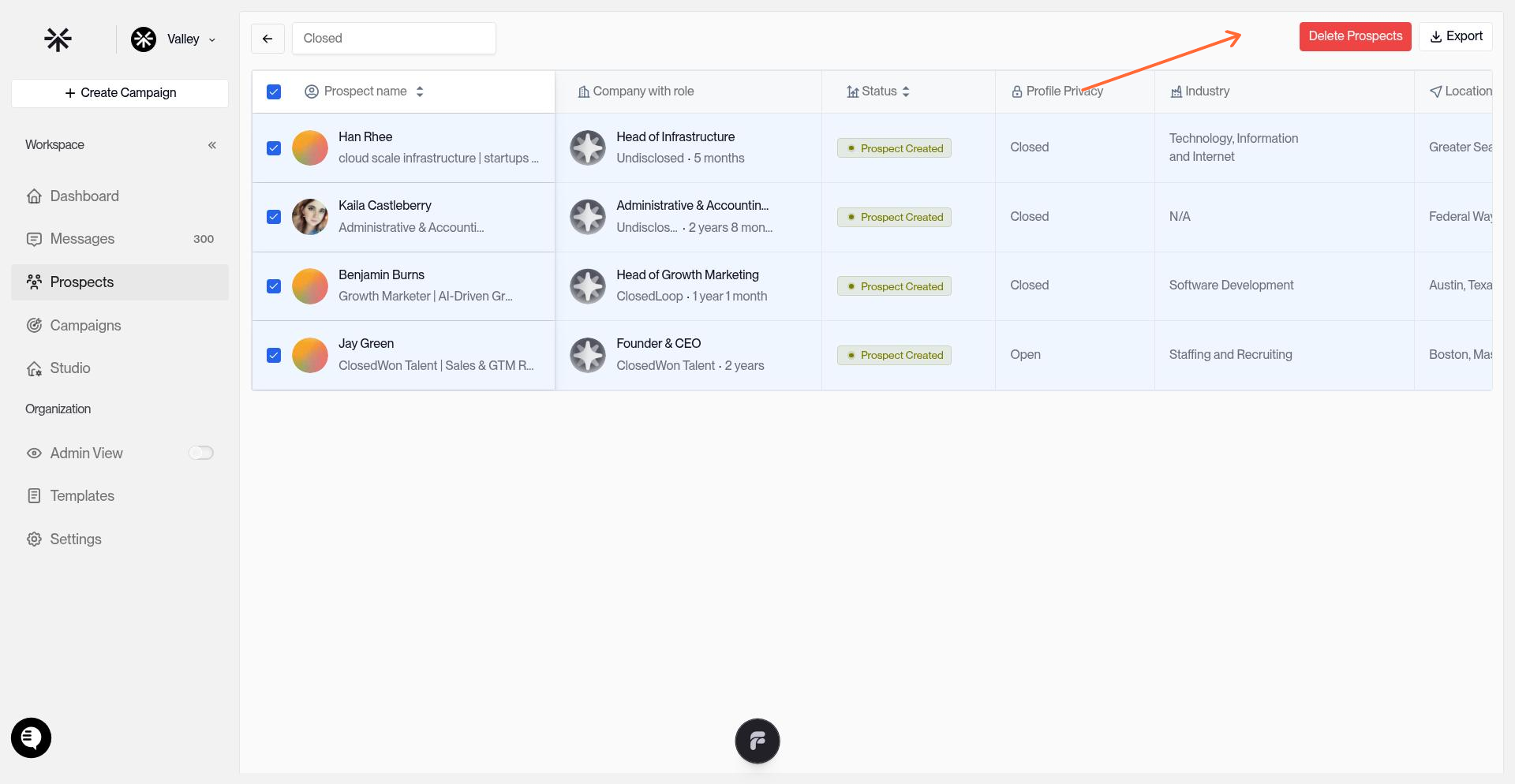
Deletion is permanent. Review your filter before deleting batches.
Move to campaign
Click the 3-dot menu next to a Warm List or within the prospect table, select Move to Campaign, and choose the destination campaign. Prospects transfer immediately with their research and personalization intact.
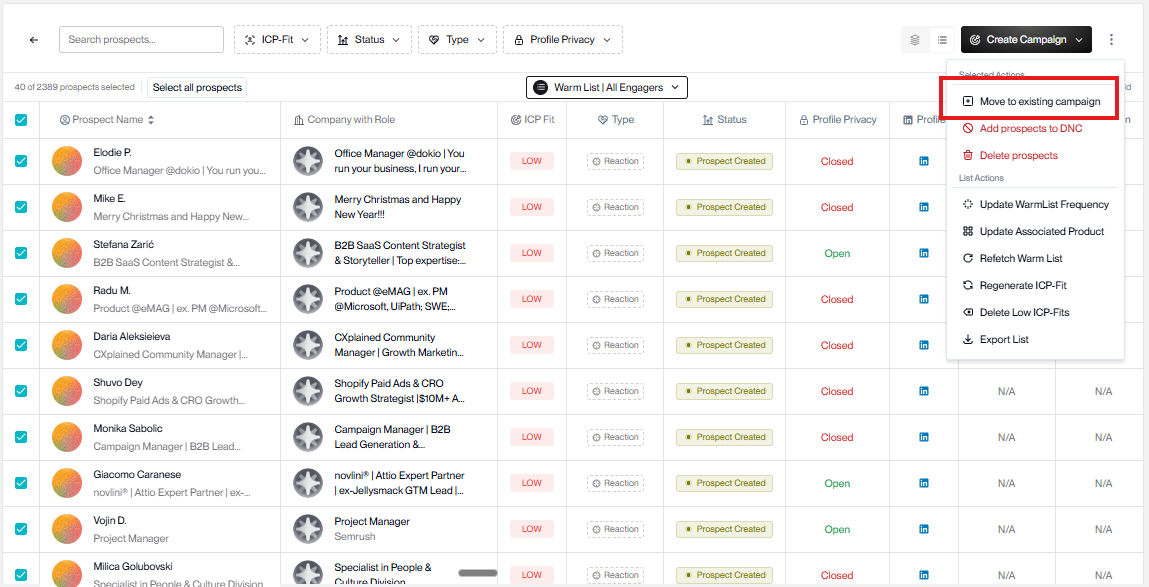
Add to Do Not Contact
Select prospects, then add to your DNC list to block future outreach. For bulk-blocking Sales Navigator search results (e.g., entire companies or locations), paste the Sales Nav URL directly into Prospects > Add to DNC > Multiple prospects. See Do Not Contact List for details.
Track filter distributions
After filtering, the prospect count updates to show how many match your criteria. Use this to gauge list health—if most prospects show Low ICP fit, review your ICP settings.