
Manage Do Not Contact sharing
Control whether your Do Not Contact (DNC) entries are private to you or shared across your entire workspace. DNC entries prevent Valley from reaching out to specific people or companies.
By default, DNC entries you add are personal—only you see them. Toggle sharing to make them workspace-wide.
Access DNC sharing controls
Navigate to Prospects > Do Not Contact from the main menu. The DNC page shows two tabs: Individuals and Companies.
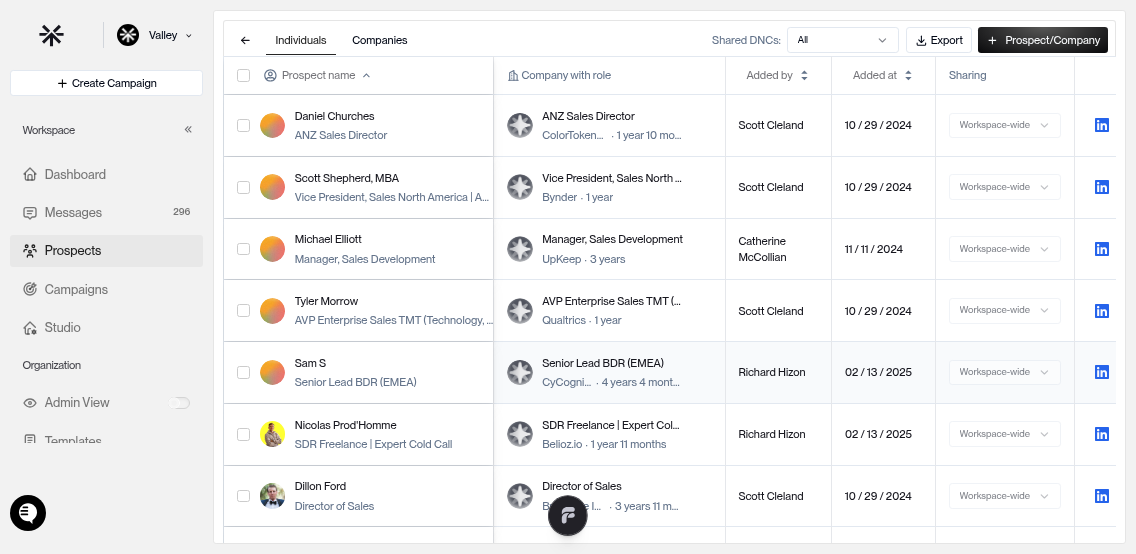
Filter by sharing scope
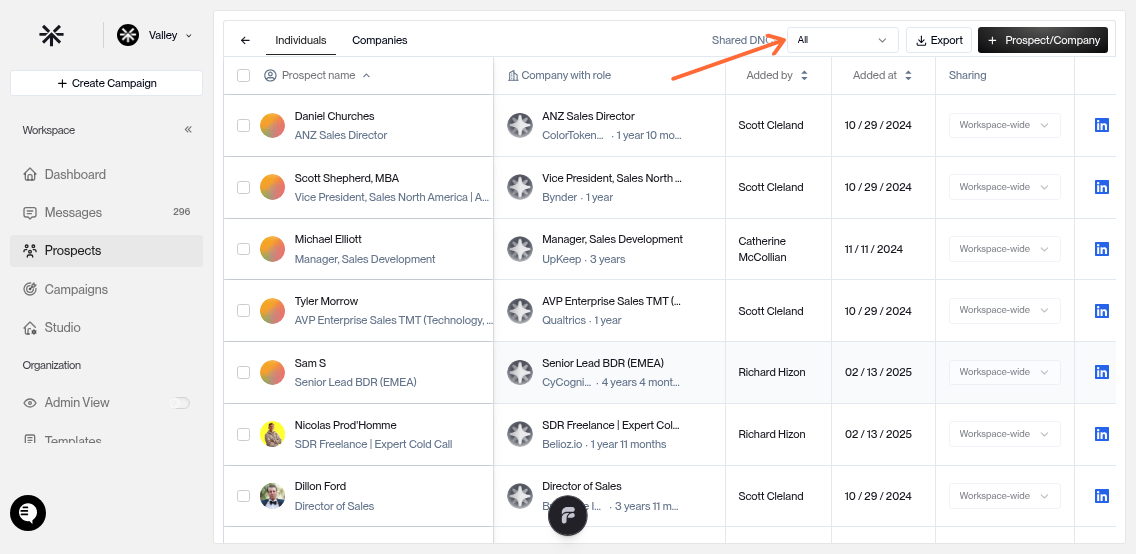
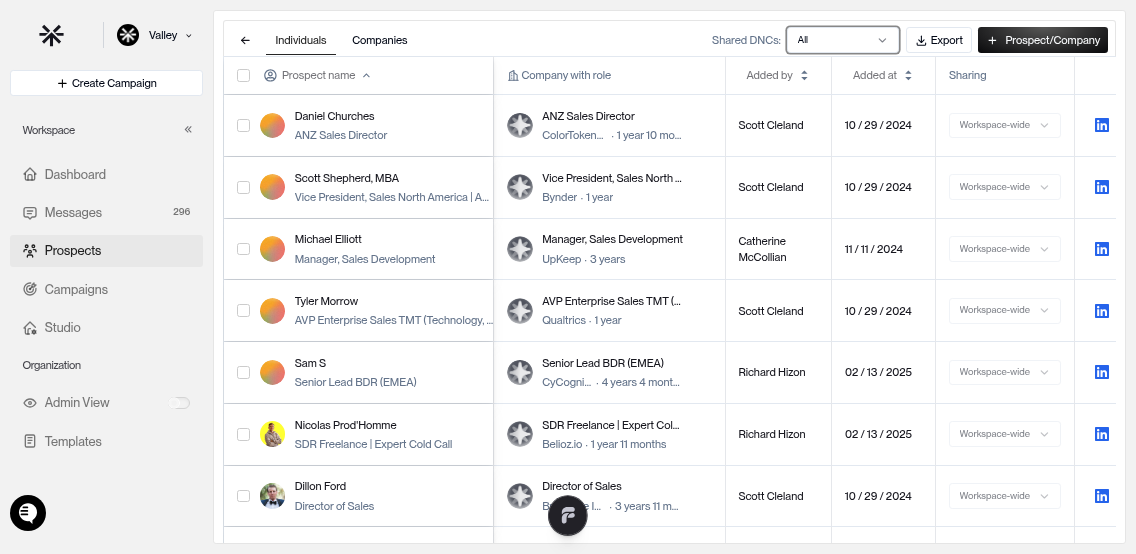
Use the sharing filter dropdown at the top to switch between:
Personal — Entries only you can see
Workspace-wide — Entries shared with your entire team
All — Combined view of personal and shared entries
View DNC metadata
Each DNC entry shows who added it and when. On the Individuals tab, you'll see Name, Role, Company, Added By (with avatar), and Added At. The Companies tab shows Company name, URN, Added By, and Added At.
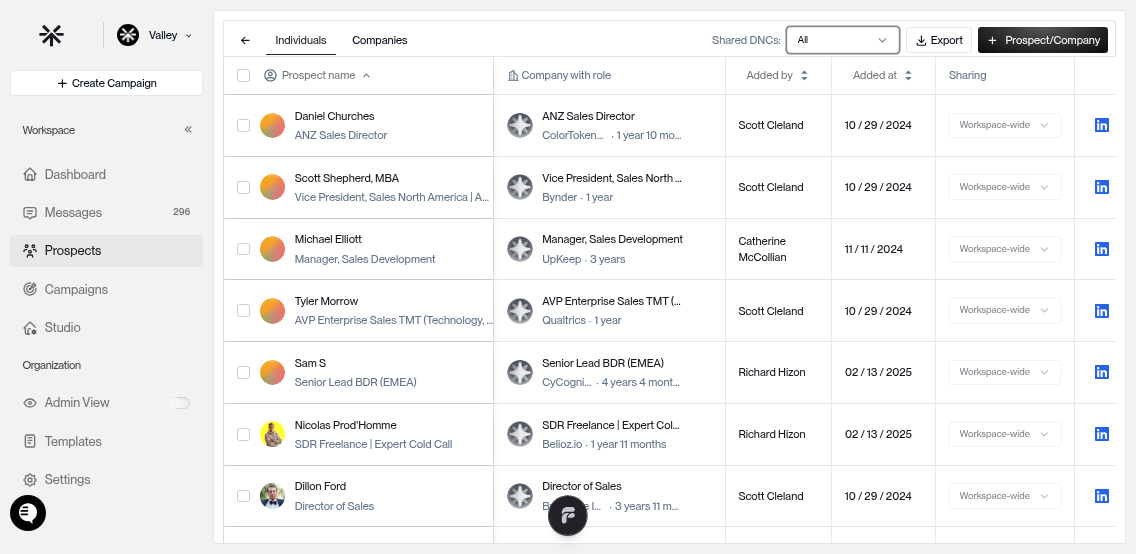
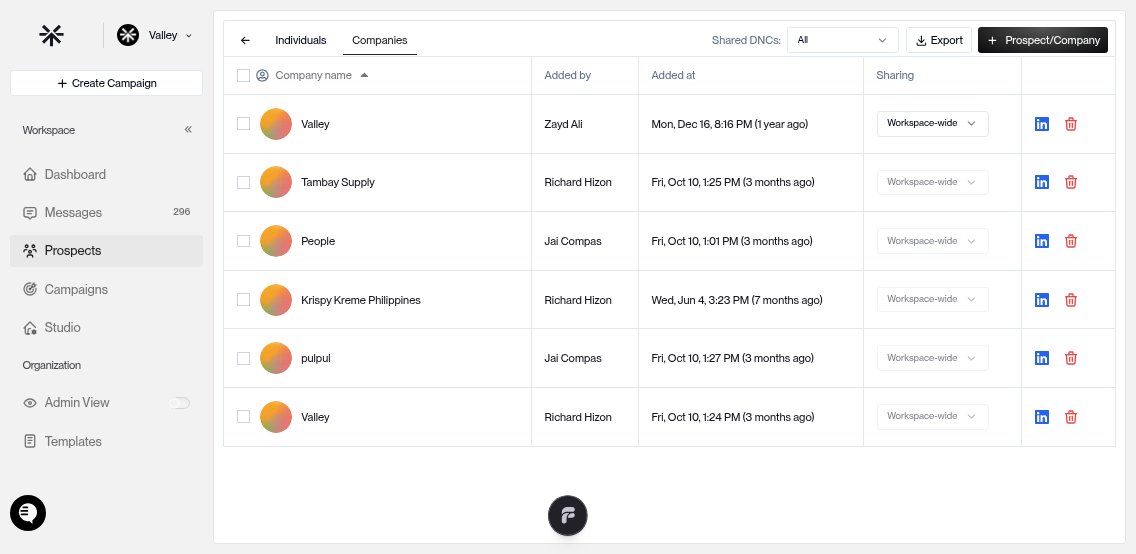
Sort by Added By or Added At to quickly find entries added by specific team members or within a timeframe.
Toggle sharing for entries
To change an entry from personal to workspace-wide (or vice versa), click the sharing toggle icon next to the entry. Changes save instantly—no confirmation needed.
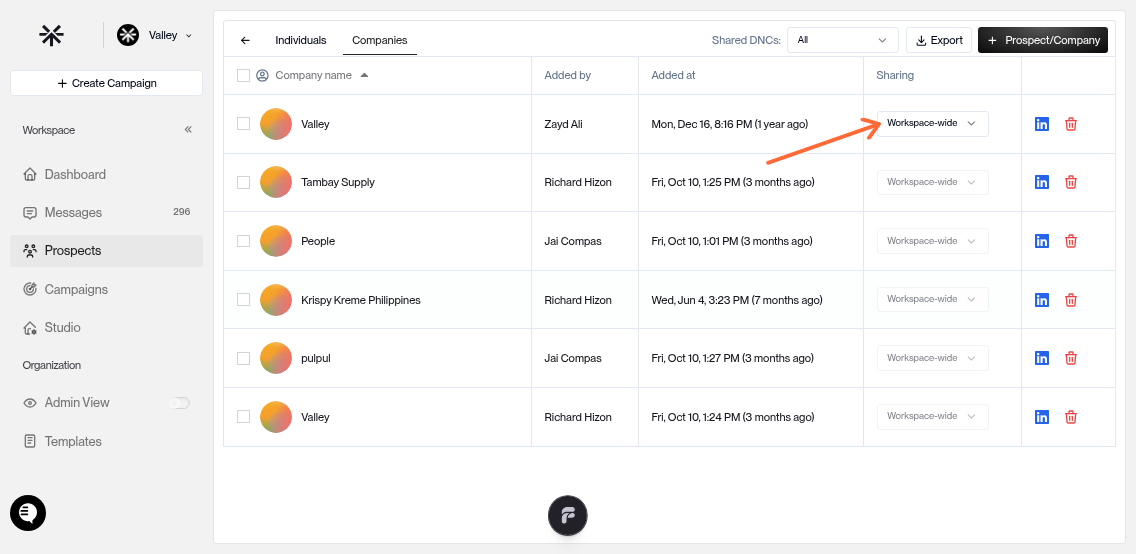
Making an entry workspace-wide means every team member will respect this DNC. Use workspace-wide sharing for company-wide blocklists (competitors, former clients, opted-out leads).
How entries stay private or shared
When you add a DNC entry, it starts as personal. Until you toggle sharing, it stays private. Workspace-wide entries block outreach for all seats in your workspace—use this to align your team on who not to contact.