
Agency Command Center
The complete guide to running Valley for multiple clients as an agency.
Part 1: Agency Architecture
Valley's architecture is purpose-built for agencies managing multiple clients. You operate from a single account with multiple workspaces, each representing one client.
How It Works
One Account: Your agency logs in once
Multiple Workspaces: Each client gets their own isolated workspace
Multiple Seats per Workspace: Each workspace can have multiple seats, each connected to a unique LinkedIn account
Admin View: Command center to manage all clients and campaigns
Architecture
Your Agency Account
Workspace A (Client 1) - Isolated Inbox, Campaigns, Studio, Analytics
Seat 1 (LinkedIn: [email protected])
Seat 2 (LinkedIn: [email protected])
Workspace B (Client 2) - Separate everything
Seat 1 (LinkedIn: [email protected])
Workspace C (Client 3)
Seat 1 (LinkedIn: [email protected])
Why One Workspace Per Client?
Complete isolation between clients:
Separate inboxes - Client 1's replies don't appear in Client 2's inbox
Independent campaigns - no interference between clients
Private analytics - each client sees only their own metrics
Unique Studio - each client's Product, Writing Style, and ICP are completely separate
Security - clients are logically separated and can't see each other's data
Admin View: Your Command Center
From Admin View, you see all clients, all seats, and all campaigns. This is where you switch between client workspaces, manage seats, approve messages across clients, review performance, and create campaigns.
Workspace and Seat Rules
Once a LinkedIn account is connected to a Valley seat, it cannot be changed. The seat is permanently tied to that LinkedIn account.
Each LinkedIn account needs its own Chrome profile. Never log into two LinkedIn accounts in the same Chrome profile.
Multiple Seats Per Client
Some clients want multiple LinkedIn accounts running campaigns:
Client with 3 SDRs = 3 LinkedIn accounts = 3 seats in one workspace
Each seat has its own Chrome profile and LinkedIn connection
All seats share the same Studio config (but each rep should duplicate the Product and add their own booking link)
Manage all seats from Admin View
Referral Program
Refer clients to Valley and earn 20% perpetual commission on their account:
Commission lasts as long as they remain a customer
Example: Refer a client at $1,000/month = $200/month recurring to you
Automatic monthly payouts
Reseller Model
Sell Valley to clients at your own markup:
Your pricing: You set it (e.g., $700/seat/month)
Valley's cost to you: Agency rate
Your margin: The difference
Valley handles backend infrastructure, you manage the client relationship
Minimum Commitments
Initial: Typically 3 months
After 3 months: Month-to-month, cancel anytime
Bulk discounts available for 10+ seat commitments
Unit Economics Example
5 clients, 1 seat each at $180/seat/month:
Cost: 5 x $180 = $900/month
Expected meetings/month: 5 seats x 10 meetings = 50 meetings
Cost per meeting: $900 / 50 = $18/meeting
Compare to: Typical SDR payroll $5,000-8,000/month
Part 3: Setting Up Your First Client
Follow these steps exactly to avoid common setup mistakes.
Prerequisites
Before you begin:
Client's LinkedIn account credentials (or client available to log in)
Client's business details (products, target buyers, pain points)
A new Chrome profile on your computer for this client
Step-by-Step Setup
1. Create a Workspace
Click your profile in the top left of Valley, then click "Add Workspace."
Name it: "ClientName - Outbound" (e.g., "Acme Corp - Outbound")
Click Create
2. Create a Seat
In the new workspace, go to Settings > Manage Seats > Invite.
Enter the client contact's email
Set role: Admin or Member
They'll receive an invite to join
3. Create a Chrome Profile
On your computer, open Chrome > click Profile icon (top-right) > Add Person.
Name it: "ClientName - LinkedIn" (e.g., "Acme Corp - LinkedIn")
This is a dedicated Chrome profile for this client only
Do NOT reuse Chrome profiles across clients. Each client gets ONE dedicated Chrome profile.
4. Log Into Their LinkedIn
Switch to the new Chrome profile. Go to linkedin.com and log in with the CLIENT'S credentials. Complete any security prompts.
The LinkedIn account logged in at connection time becomes permanently locked to this Valley seat. Double-check you're logged in as the CLIENT, not yourself.
5. Connect LinkedIn to Valley
Still in the client's Chrome profile:
Go to app.joinvalley.co
Log in with YOUR agency Valley credentials
Go to Admin View > select the client's workspace
Click into the client's seat
Install the Valley Chrome extension and click Connect LinkedIn
Wait 2-3 minutes, then refresh
You should see a green checkmark indicating successful connection
6. Set Up Studio
In the client's workspace, go to Studio and create:
Product: Interview the client (15 min). What do they sell? Main value prop? Pain points they solve? Proof points? What is their ICP? Add their booking link.
Writing Style: Interview the client (15 min). How do their SDRs talk? Formal or casual? Create DOs/DON'Ts matching their voice. Complete the Advanced Questions. Fill in the LinkedIn Sequence section.
Do NOT copy-paste Studio configs between clients. Each client needs a unique Product, Writing Style, and ICP based on their specific business. Copied configs produce generic messages and tank reply rates.
7. Create First Campaigns
Go to Campaigns > Create Campaign.
Start with warm lists:
Profile Viewers: Start Capturing
Post Engagers: Add 3-5 influencer URLs from the client's industry
Profile followers: Start capturing
Then, click on "create campaign" and start creating campaigns.
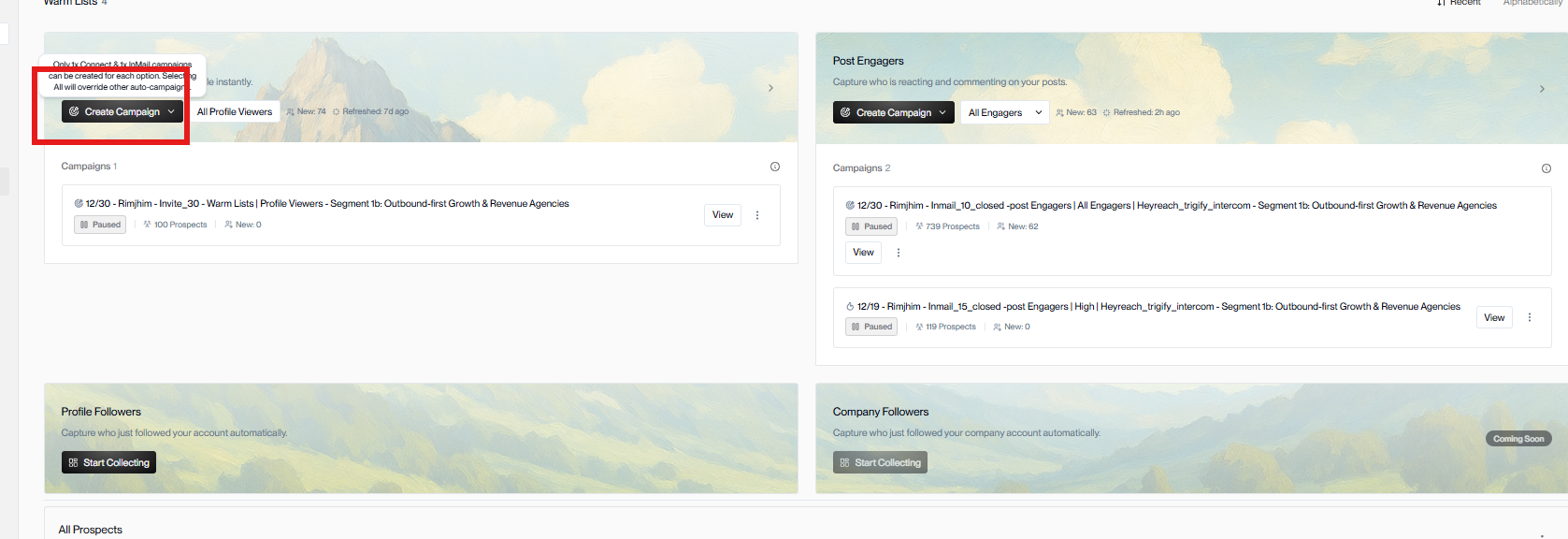
Then add imported list campaigns:
Use one prospect list and select Connect and InMail in the create campaign window
For each: select Product, Writing Style > enter Training Mode > review messages > give feedback > Launch.
8. Enable Autopilot
Toggle Autopilot ON for each campaign individually. This lets Valley send automatically without manual approval on every message.
9. Delete Low ICP Fits
For imported list campaigns, click three dots > Delete Low ICP Fits to remove bad-fit prospects.
Sign-Off Checklist
Before telling the client their account is ready:
Workspace created
Seat created and LinkedIn connected (green checkmark)
Chrome profile created and named
Studio completed (Product with booking link, Writing Style with Advanced Questions, ICP)
At least 2 campaigns created and launched
Autopilot enabled
Client trained on how to check inbox for replies
Part 4: Scaling to Multiple Clients
Same Process, New Chrome Profile
For each additional client, repeat Part 3:
Create new workspace (top left > Add Workspace)
Create new seat
Create NEW Chrome profile
Log into their LinkedIn
Connect to Valley
Set up unique Studio
Create and launch campaigns
Organizing Chrome Profiles
Keep a spreadsheet: Client Name | Chrome Profile Name | LinkedIn Email | Seat Status
Chrome Profile 1: "Acme Corp - LinkedIn" ([email protected]) Chrome Profile 2: "TechStart Inc - LinkedIn" ([email protected]) Chrome Profile 3: "Global Industries - LinkedIn" ([email protected]) Chrome Profile 4: "Your Agency - LinkedIn" (YOUR personal LinkedIn)
Print or bookmark this spreadsheet when managing 8+ clients. Mixing up Chrome profiles is the #1 agency mistake.
Scaling Operations
Clients | Staff Needed | Time/Day |
|---|---|---|
1-3 | You alone | 30-60 min |
4-7 | You + 1 campaign manager | 2-3 hours |
8-15 | You + 2 campaign managers | 4-5 hours |
15+ | Consider Managed Service tier | Hands-off |
Part 5: Daily Agency Operations
Once clients are live, your daily job is managing inbox, responding to interested prospects, and keeping campaigns running.
Morning Routine (30-60 min for 5 clients)
Cycle through each client's workspace in Admin View:
For each client (5-10 min):
Check Inbox for new replies. Sort by Interested and Might Be Interested first.
Respond to interested prospects quickly - same day minimum.
Handle any pending Approvals (if Autopilot is off for some campaigns).
Check LinkedIn connection status - should show green. If disconnected, reconnect.
Move to next client.
Total: 5-10 min per client x 5 clients = 30-60 min/day.
Response Speed
Interested prospects cool off fast. Respond the same day - ideally within a few hours. The faster you respond, the higher the conversion to meetings.
Set up webhook notifications to push interested replies to a dedicated Slack channel. This lets your team see hot leads in real-time without constantly checking Valley.
Weekly Routine (1 hour)
Campaign Performance Review: For each client, check:
Messages sent this week
Reply rate (target: 5-15% cold, 15-30% warm)
Interested replies
Meetings booked (tracked via Meeting Scheduled tag)
If reply rate is below 5% for cold or 15% for warm, investigate:
ICP too broad?
Writing Style off?
Warm list sources need refreshing?
Source Refresh: If a campaign's reply rate is dropping, the list may be getting stale. Add new Post Engager influencers, refresh SalesNav searches (three dots > Refresh), or upload new CSVs.
Client Briefing: Send each client a quick summary: "This week you had X interested replies and Y meetings booked. Reply rate is Z%, which is solid."
Monthly Routine (2 hours)
Performance Analysis: Pull the month's data per client:
Messages sent
Reply rate
Interested replies
Meetings booked (via Meeting Scheduled tag)
Cost per meeting (Valley cost / meetings)
Campaign Refresh: Pause underperforming campaigns. Create new ones targeting fresh segments. Update Writing Styles with new angles or case studies.
Client Reporting: Package results into a simple report:
"January 2026 - Outbound Results Account: Sarah Thompson Seat: 1 Valley seat @ $180/month Messages sent: 780 Reply rate: 6.8% Interested replies: 18 Meetings booked: 7 Cost per meeting: $26"
Next Month Planning: Discuss with each client: scale to more seats? New target segments? ICP adjustments?
Part 6: Common Agency Mistakes
Mistake #1: Creating Campaigns from Wrong Account
You forgot to enter the client's workspace through Admin View. The campaign uses YOUR name and profile instead of the client's.
ALWAYS go through Admin View. Click into the client's seat BEFORE creating any campaign. Verify the workspace name in the top-left corner before doing anything.
Mistake #2: Mixing Chrome Profiles
You logged into Client 1's LinkedIn in the same Chrome profile as Client 2. LinkedIn gets confused, flags suspicious activity, sessions conflict.
Each client gets ONE dedicated Chrome profile. Never use the same Chrome profile for two different LinkedIn accounts. Name profiles clearly: "ClientName - LinkedIn."
Mistake #3: Reusing Studio Config Across Clients
You copied Client 1's Studio and pasted it into Client 2's workspace. Messages sound like Client 1, not Client 2. Reply rate tanks.
Create fresh Studio for each client. Spend 30-60 minutes interviewing each client about their Product, Writing Style, and ICP. No copy-paste.
Mistake #4: Running Multiple Automation Tools
Client is running Valley AND another LinkedIn automation tool on the same account. LinkedIn flags the activity.
Use ONLY Valley for LinkedIn automation on any connected account. Pause all other LinkedIn tools. Cold email tools (Gmail/Outlook based) are fine to run in parallel - they don't trigger LinkedIn flags.
Valley has had 0 account expulsions since October 2023 thanks to strict safety practices. Running other tools alongside Valley puts that record at risk.
Mistake #5: Forgetting to Click Launch
You created the campaign, went through Training Mode, approved messages... but never clicked Launch. Nothing sends.
Campaign flow: Create > Training Mode > Review > LAUNCH. If you forget Launch, the campaign sits idle.
Mistake #6: Slow Response to Interested Replies
Client complains: "We got 20 interested replies but only 2 meetings."
The issue is almost always response speed. Interested replies that sit unanswered for a day convert at a fraction of the rate of same-day responses. Check Valley inbox daily for every client.
Mistake #7: Not Selecting Both Connect and InMail
Client is only using one outreach type during campaign creation. That limits coverage from the same prospect list.
Every client should select BOTH Connect and InMail in the create campaign window. Do not create separate campaigns from the same list when the standard setup is to use both in one flow.
Mistake #8: Too-Broad ICP
Client is getting replies, but they're not qualified. Half don't even use the product.
The ICP is too vague. "Anyone in marketing at companies with 50+ employees" is too broad. Use the Always Score High / Always Score Low framework. Be specific about titles, company size, stage, industry, and disqualifiers.
Bonus: Not Training AI on Client's Voice
Messages are decent but "don't sound like us." You wrote generic Writing Style config without learning the client's actual communication style.
Fix: Ask the client for 3 recent outreach messages their team sent. Put key phrases, tone, and structure into Writing Style DOs/DON'Ts. Complete the Advanced Questions based on how the client actually communicates. Regenerate campaigns.
Part 7: Client Reporting & Proving ROI
The Key Metrics
Metric | Target | Why It Matters |
|---|---|---|
Messages Sent | ~800/month per seat (with Advanced) | Proves productivity |
Reply Rate | 5-15% cold, 15-30% warm | Quality of targeting & messaging |
Interested Replies | ~10+ in month 1, growing | Leading pipeline indicator |
Meetings Booked | Track via Meeting Scheduled tag | Hard ROI number |
Cost Per Meeting | Varies by seat cost | Compare to SDR salary |
The ROI Math
Your clients think in SDR costs. Translate Valley:
Typical SDR payroll: $5,000-8,000/month
Valley agency cost: $180-300/seat/month
Valley output: Significant portion of SDR pipeline generation at a fraction of the cost
Example: "You booked 8 meetings this month at $23/meeting (Valley: $180/seat). A typical SDR costs $6,000/month for similar output. That's 30x better unit economics."
Pipeline Value
If your client closes 20% of first meetings at $50k ACV:
8 meetings/month x 20% close rate x $50k = $80,000 pipeline/month
Valley cost: $180-300/month
ROI: Massive
Red Flags and Fixes
0 replies after 2 weeks: ICP is wrong, Writing Style doesn't match client voice, or target list is too small. Fix: refine ICP, interview client for real voice, add more warm list sources.
High replies but 0 meetings: Response speed too slow, follow-up messages too weak, or prospects aren't qualified. Fix: respond same day, improve follow-up templates, tighten ICP.
Declining performance month-over-month: Warm list sources exhausted, Writing Style stale, or market shifted. Fix: refresh sources monthly, update messaging angles, review ICP quarterly.
Part 8: Getting Help
Support Channels
In-app chat (Pylon): 5-30 min response time
Email: [email protected] - 24 hour response
Onboarding sessions: Mon/Wed/Fri 11am ET
Activation sessions: Tue/Thu 11am ET
Agency-Specific Support
For agencies managing 5+ clients:
Partnership manager for pricing negotiation and custom contracts
Quarterly business reviews
Early access to new features
Contact [email protected] to discuss partnership
When to Escalate to Valley
Handle Yourself | Escalate to Valley |
|---|---|
Low reply rates (check ICP, Writing Style, sources) | Technical issues (messages not sending) |
Standard pricing questions | 5+ seat deals or custom contracts |
Chrome profile management | Persistent LinkedIn disconnections (after 3 attempts) |
Campaign strategy | Custom industry optimization help |
Valley's Track Record
0 account expulsions since October 2023
Direct support for agency partners
Referral and reseller programs
Transparent pricing with no per-message fees
Before Signing Your First Agency Client
Checklist:
Read this entire guide
Set up a test workspace and seat for yourself
Created a Chrome profile and connected your own LinkedIn
Created a test campaign and reviewed messages
Documented your pricing (self-serve vs. managed service)
Planned your daily/weekly/monthly operational rhythm
Contacted [email protected] about agency pricing
You're ready to launch.