
Clay Setup
Clay integration lets you send people from a Clay table into a Valley campaign, so you can do research/enrichment in Clay and run outreach in Valley.
What you’ll use it for
Enrich a list in Clay (company data, titles, emails, etc.) and add those people into a Valley campaign.
Keep your campaign’s prospect list clean (Valley avoids duplicates for the same LinkedIn profile within a campaign).
What you need in Clay
A Clay table with a column that contains each person’s LinkedIn profile URL (this is required).
A Growth Plan at the very least where
HTTP APIis available to use.Supported field mappings in Valley (7 total):
linkedin_url(required)first_namelast_nameemailjob_titlecompany_namecompany_website
Setup
1) Create a Clay sync in Valley
In Valley, go to Settings → Integrations → Clay.
Click Add Clay Sync (or Connect Clay).
Enter a Table Name (this is just a label in Valley).
Set Field Mapping (Valley field → Clay column name).
Required:
linkedin_urlOptional:
first_name,last_name,email,job_title,company_name,company_website
Click Next.
Valley will show you two values:
Webhook URL
Webhook Secret (treat this like a password – store it safely)
2) Set up the HTTP API column in Clay
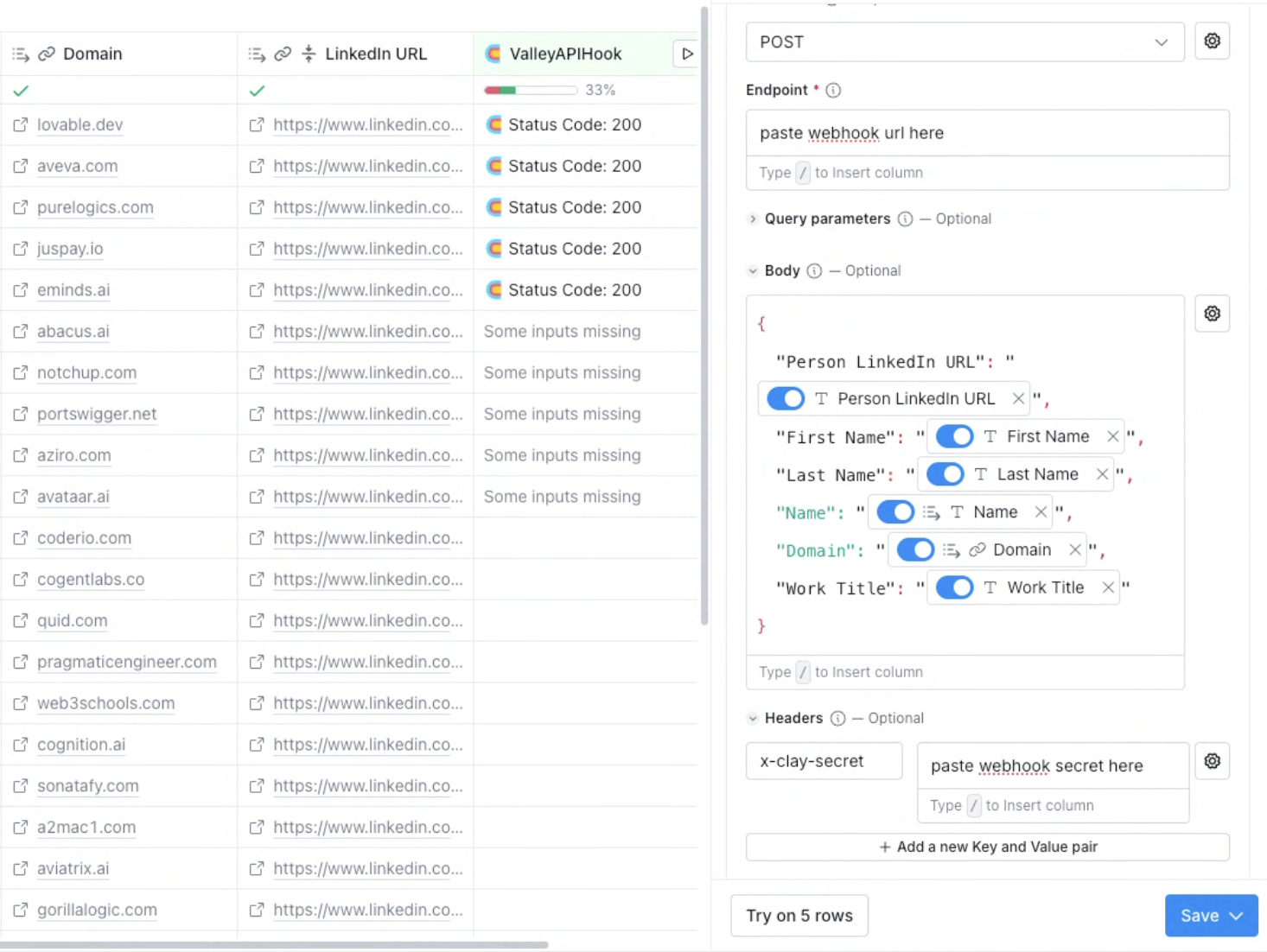
In Clay:
Open the table you want to sync from.
Click + Add column → Add enrichment.
Search for HTTP API and select it.
Choose Configure (manual setup).
Set Method to
POST.Paste the Webhook URL from Valley into the endpoint.
Add a header:
x-clay-secret: paste the Webhook Secret from Valley
Set the request Body to JSON.
Example request body (minimum LinkedIn Profile URL required)
Replace CLAY COLUMN NAME HERE with the Clay column name you mapped to linkedin_url.
{
  "CLAY COLUMN NAME HERE": "type / and select the column Name matching the key" // Both key and Column name must be same
}
If you mapped additional Clay columns in Valley, you can include them in the same JSON body.
Important: the JSON keys must match your mapped Clay column names exactly. Your field mapping for Clay Column x Valley's linkedin_url value x CLAY COLUMN NAME HERE
In the payload, all three values must be the same.
3) Test the connection (optional but recommended)
In Valley’s Clay setup wizard, click Test Connection.
This checks that:
Your secret is correctly set in your header authorisation in Clay
Your webhook endpoint is correctly set in Clay to receive data
4) Create a campaign with Clay (two methods)
Clay campaigns use a Clay Table Sync instead of uploading a file or pasting a LinkedIn URL.
Method A — Start from Settings → Integrations → Clay
Find your sync in the list.
Click Connect Campaign.
Choose the campaign you want these Clay rows to flow into.
If you don’t have a campaign yet, use Create Campaign with Clay Source from the Clay page. Valley will open the campaign creation flow with that sync pre-selected, and the sync will connect automatically when you finish creating the campaign.
Method B — Start from the campaign creation flow
Go to Campaigns → Create campaign.
In Upload Prospects, choose Clay Table Sync.
Choose either:
Use Existing Sync (pick an unlinked sync), or
Create New Sync (set one up from inside the campaign flow)
Click Add (or Use This Sync), then finish creating the campaign.
Note: a Clay sync can only be connected to one campaign at a time. You can disconnect and reconnect it later (already-imported prospects stay in the campaign).
Importing prospects
After the sync is connected to a campaign:
In Clay, save your HTTP API column setup.
Click the Play (▶) button on that HTTP API column for one row first.
When that test row looks good, run Play for the rest of the table.
Wait for prospects to be enriched/imported into the connected Valley campaign pipeline.
Duplicates – If the same LinkedIn profile is sent multiple times into the same campaign, Valley won’t create a duplicate prospect.
Managing your sync
Waiting: the sync isn’t connected to a campaign yet.
Active: Clay rows will import into the connected campaign.
Paused: imports are temporarily stopped until you resume.
You can also:
Disconnect a sync from a campaign (already-imported prospects stay in the campaign).
Rotate the secret if you think it was exposed (you’ll need to update Clay with the new secret).
Edit field mapping if your Clay column names change.
Quick troubleshooting
“Sync not linked to campaign”: Connect the sync to a campaign in Valley (Settings → Integrations → Clay).
“Sync is paused”: Resume the sync in Valley.
No prospects showing up: Double-check the LinkedIn URL field mapping, verify JSON keys match your mapped Clay column names exactly, and confirm you’re running the HTTP API enrichment/Play action on rows in Clay.